The Domains page of a hosting site is where you attach extra domain names and subdomains to the site, edit the DNS zone the control panel serves for them, and manage each domain’s SSL certificate. Open it from the site toolbar (My Sites → your site → Domains), or go to /sites/{id}/domains. This article is for the customer, and covers the page on all three panels it runs on: Enhance, cPanel/WHM and Plesk.
Note: This page manages domains on your hosting account. A domain you bought through your provider as a registration is managed separately under My Domains, where you set nameservers and get the transfer code.
What each panel can do from here #
The page looks the same whichever panel your plan runs on, but the panels do not offer the same operations. Where one cannot do something, the portal says so in the panel’s own words rather than failing silently.
| Action | Enhance | cPanel/WHM | Plesk |
|---|---|---|---|
| Add an alias or subdomain | Yes | Yes — an alias becomes a parked domain | Yes — an alias becomes a domain alias |
| Delete a domain | Yes | Yes | Yes |
| Make Primary | Offered on aliases | Refused by the panel | Refused by the panel |
| Add, edit and delete DNS records | Yes | Yes — record ids are zone-file line numbers | Yes |
| Install / renew Let’s Encrypt | Yes | Queues an AutoSSL run for the whole account | Refused — done in Plesk |
| Upload a custom certificate | Yes | Yes | Refused — done in Plesk |
| Force HTTPS switch | Yes | Refused, and always displays as off | Displays correctly, but cannot be changed |
The domain list #
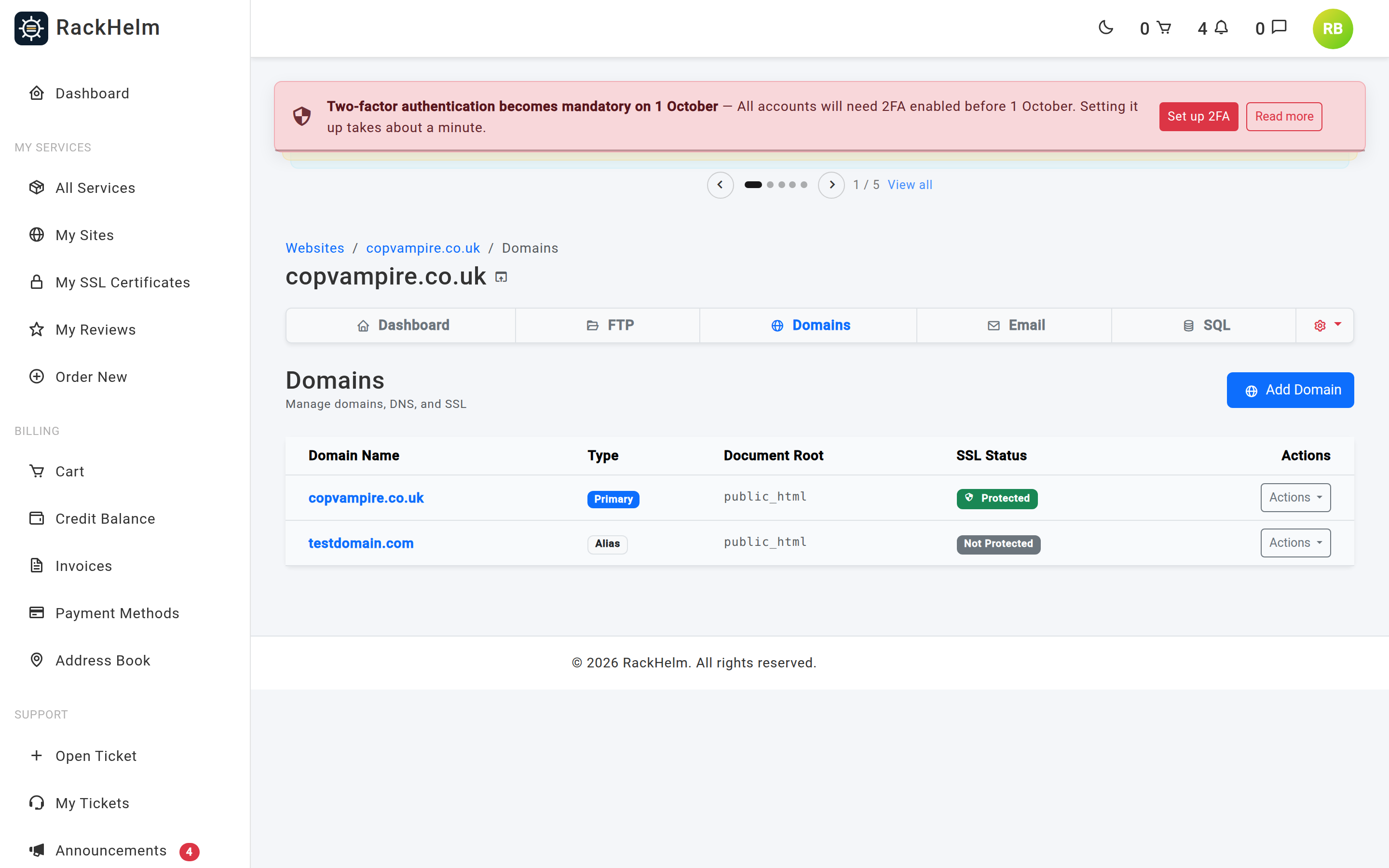
| Column | What it shows |
|---|---|
| Domain Name | The domain. Select it to manage its DNS and SSL. |
| Type | Primary, Subdomain or Alias. A cPanel add-on domain is reported as addon and falls into the Alias badge. |
| Document Root | The folder on the site that this domain serves. On cPanel and Plesk only the primary domain reports a real path; the rest show /. |
| SSL Status | Protected when a genuine certificate is installed, otherwise Not Protected. A self-signed placeholder certificate counts as Not Protected on every panel. |
| Actions | Manage, Make Primary (aliases only) and Delete Domain (anything but the primary). |
Adding a domain or subdomain #
- Select Add Domain.
- Choose the Domain Type:
- Alias — a whole separate domain parked on this site. Enter the full name in Alias Domain Name, for example
example.net. An alias always serves the site root; there is no document root to set. - Subdomain — enter only the prefix in Subdomain Prefix, for example
blog. The primary domain is appended for you. Set the Document Root to the folder that should serve it; leaving it blank uses a folder named after the full subdomain.
- Alias — a whole separate domain parked on this site. Enter the full name in Alias Domain Name, for example
- Select the confirm button.
Note: The
/public_html/shown before the Document Root box is a label, not part of what is submitted. Whatever you type is sent to the panel as it stands: cPanel strips a leading slash and treats the rest as relative to the account’s home directory, Plesk uses it as the subdomain’s web root.
On Enhance the domain is checked against the panel first, and a name already in use anywhere on the panel gives “The domain ‘…’ is already in use.” before anything is created. cPanel and Plesk have no equivalent pre-flight check, so a duplicate is caught by the panel at creation time and comes back as “Failed to add domain: ” followed by the panel’s own wording.
Changing the primary domain #
The primary domain is the site’s canonical address. To promote an alias, choose Actions → Make Primary on its row. The confirmation dialog names both the old and new domain and offers two options, both ticked by default:
- Redirect to www version — makes
www.the canonical hostname. - Force HTTPS redirects — sends plain HTTP requests to HTTPS.
On Enhance, confirming updates the panel and also updates the domain the portal shows against this hosting package everywhere else.
Warning: On cPanel and Plesk the primary domain is fixed when the account or subscription is created, and the panel refuses to change it — “On cPanel the primary domain is fixed when the account is created. Please contact support if it needs to change.” and, on Plesk, “On Plesk the primary domain is fixed when the subscription is created. Please contact support if it needs to change.” The Make Primary action is still offered on alias rows on those panels. Raise a ticket instead.
Warning: In this release the Confirm Change button on the Make Primary dialog submits the form as a PUT, while the route that handles it only accepts a POST. The request is rejected by the router before it reaches the panel, so nothing changes and no success message appears. Until this is fixed, ask support to change a primary domain — on any panel.
Warning: Your other domains do not automatically redirect to the new primary. Only the two options above are applied.
Deleting a domain #
Choose Actions → Delete Domain and confirm the “Remove …? Data will be lost.” prompt. You will then be asked for your account password. The primary domain cannot be deleted — the portal refuses with “The primary domain cannot be deleted.” Promote another domain to primary first, or raise a ticket on cPanel and Plesk, where promoting is not possible.
On cPanel a subdomain is removed with the panel’s own subdomain delete and anything else is unparked. On Plesk a subdomain is removed as a subdomain and everything else as a domain alias. Both panels refuse the primary in their own words: “The primary domain of a cPanel account cannot be removed.” and “The primary domain of a Plesk subscription cannot be removed.”
DNS records #
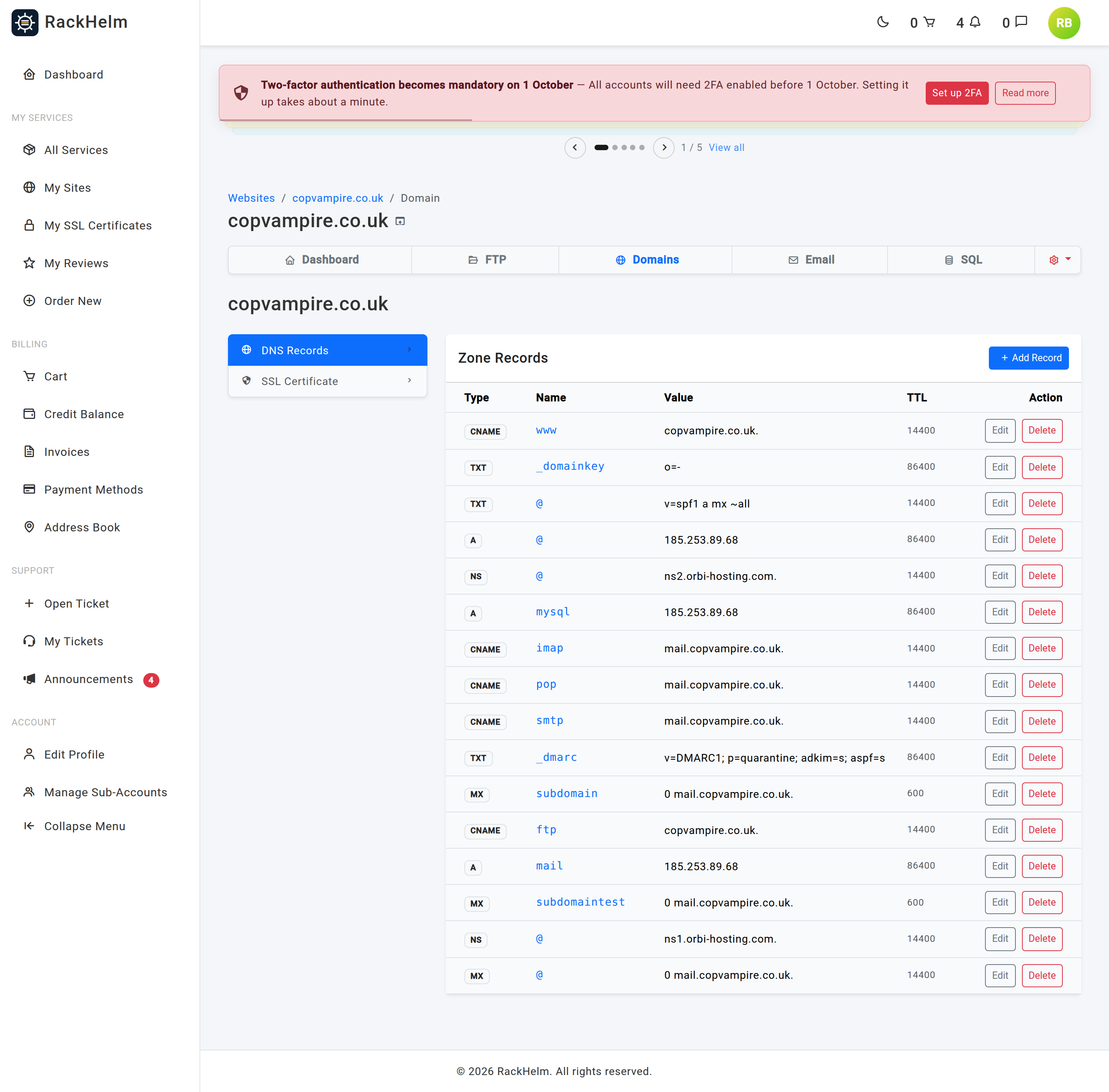
Opening a domain shows two tabs. Zone Records lists the DNS zone as Type, Name, Value and TTL. A record with an empty name is shown as @, meaning the domain itself.
Adding a record #
- Select Add Record.
- Choose the Type: A, CNAME, MX or TXT.
- Set the TTL in seconds. The default is
14400(four hours). - Enter the Name — just the prefix; the domain is shown after the box. Leave it as
@for the domain itself. - Enter the Value, for example an IP address for an A record.
- Save.
Both Type and Value are required. Editing an existing record offers the same fields plus SRV and AAAA.
There is one Value box for every record type, so records that carry a priority are written into it in full. For an MX record on cPanel or Plesk, enter 10 mail.example.com — the leading number is split off and stored as the priority. On cPanel a value with no leading number is stored with priority 10. An SRV record takes its three numbers first, for example 10 5 5060 sip.example.com.
Warning: On cPanel a record’s id is its line number in the zone file — that is how cPanel addresses records, and there is nothing else to key on. Adding or deleting any record renumbers everything below it. Always reload the domain page after a change before editing or deleting another record: an Edit or Delete submitted from a stale page will act on whatever record now sits on that line.
Note: On Plesk the TTL belongs to the zone, not to individual records, and neither Plesk API exposes a per-record value. The TTL column therefore reads
3600for every record regardless of what you enter. Plesk also substitutes the domain name for a@or blank Name.
Deleting a record #
Select Delete on the row, confirm the prompt, then confirm your account password. Deleting a DNS record can take a website or mail flow offline immediately, which is why it asks twice.
Note: These records only take effect if this domain’s nameservers point at your provider’s DNS. If you host DNS elsewhere, change the records there instead.
SSL for a site domain #

The SSL Certificate tab shows the certificate state for the domain you opened.
When a certificate is installed you see SSL Protected, the issuer, Expires On, Issued On, the list of SANs (Covered Domains), and a Force HTTPS switch. Flipping the switch applies immediately — there is no separate save. When there is no real certificate the tab reads No SSL Certificate.
“No real certificate” is decided per panel. Enhance issues a placeholder certificate dated 1975 or 4096, and those dates are treated as no certificate. cPanel reports its self-signed certificate honestly, and the portal treats self-signed as absent for the same reason.
Two actions are always shown under Certificate Actions:
- Let’s Encrypt — Install Let’s Encrypt when there is no certificate, or Renew Certificate when there is. Issuance happens in the background: you get “Let’s Encrypt provisioning started. It may take a few moments to appear.” Reload the page after a minute or two.
- Custom Certificate — Upload Certificate opens a dialog with Private Key (KEY) and Certificate (CRT/PEM). Paste the PEM blocks in full and include the intermediate chain with the certificate. Both fields are required.
Note: On cPanel the Let’s Encrypt button does not issue a certificate for the one domain. It queues cPanel’s own AutoSSL check for the whole cPanel account, which then covers every domain on it that passes validation. The wording on the button has not changed.
Warning: On cPanel the Force HTTPS switch always renders as off — the adapter cannot read the setting — and flipping it fails with “Failed to toggle HTTPS: Forcing HTTPS is not switched on from here for cPanel sites. Add the redirect in cPanel under Domains, or ask support to set it up.” Do not read the switch as the truth about your site on cPanel.
Warning: On Plesk all three certificate actions are read-only. The switch correctly reflects the subscription’s SSL redirect setting, but changing it, issuing a certificate and uploading one all fail, each with its own message pointing at Plesk. Renew Certificate returns: Renewal failed: Issuing or renewing a Let’s Encrypt certificate is done in Plesk under SSL/TLS Certificates for the domain. Open your control panel and use “Install a free basic certificate”, or contact support and we will do it for you.
Note: This is the panel’s own certificate store, and is separate from a certificate bought as a product through your provider. For those, see My SSL Certificates — you download the files there and upload them here, or install them on your own server.
Troubleshooting #
| Symptom | Cause / fix |
|---|---|
| “Error loading domains: …” instead of the list. | The portal could not reach the control panel. Reload; if it persists, open a ticket. |
| “Could not determine primary domain for subdomain creation.” | The panel has no primary domain recorded for the site, so there is nothing to append the prefix to. Add the domain as an alias instead, or open a ticket. |
| The Zone Records table says “No custom records found.” | The panel returned no zone for this domain — normal when DNS is hosted elsewhere. |
| A domain shows Not Protected even though HTTPS works. | The certificate on it is a placeholder or self-signed. Use Install Let’s Encrypt on Enhance or cPanel; on Plesk, issue it in the panel. |
| Let’s Encrypt fails to issue. | The domain must resolve to this server before the certificate authority can validate it. Check the domain’s nameservers and A record, then try again. |
| “Unauthorized access to domain.” | The domain id in the address does not belong to this site. Go back to the domain list and open it from there. |
| “That domain is not part of this subscription.” (Plesk) | The same check, applied by the Plesk adapter. Reopen the domain from the list. |
| “That DNS record no longer exists.” (Plesk) | The record was removed, here or in Plesk, since the page was loaded. Reload the domain page. |
| An edit on cPanel changed the wrong record. | Record ids are zone line numbers and shift when the zone changes. Reload the page and correct both records. |


