The AI SEO tool analyses the website on a hosting package and produces a report covering site health, page speed, technical SEO signals, backlinks and keyword opportunities. It runs in three stages: a scan of your site, a short form where you confirm what your business does, then the generated report.
Before you start #
The AI SEO button appears on the site toolbar only when your provider has the module switched on and either you hold the AI SEO add-on on the package or free scans are enabled. If the button is missing, ask your provider whether the add-on is available.
Scans are counted against your account for that site. A banner at the top of the page tells you where you stand:
- AI SEO Addon Active — unlimited scans for the domain, subject to fair use.
- Freemium Mode — “You have used n of m free scans”, with the reset period if your provider set one.
- A Scan Usage card showing the count as a progress bar, and whether the allowance resets after a number of days or is a lifetime limit.
Running a scan #
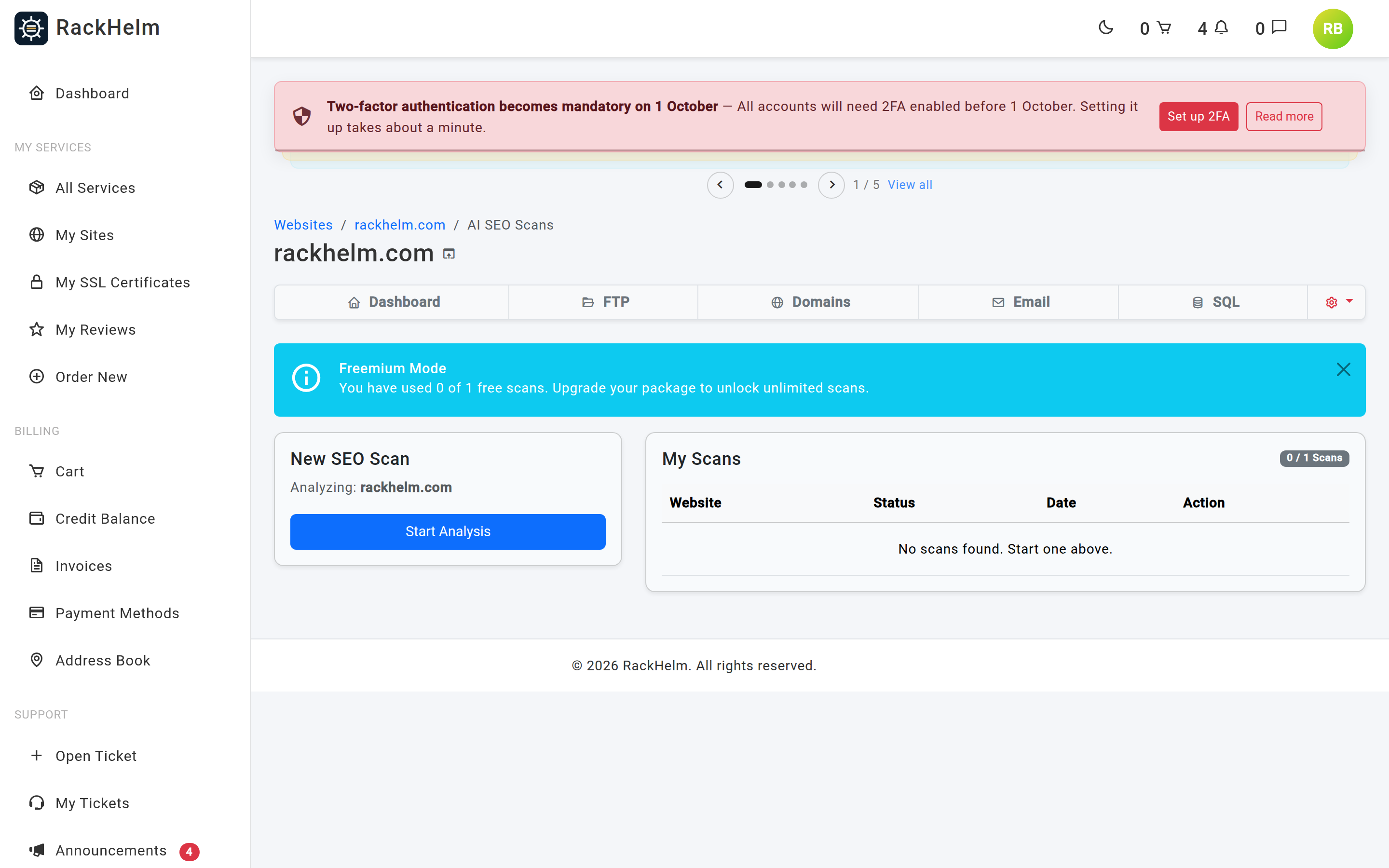
- Open My Sites → your site → AI SEO.
- Check the domain named under New SEO Scan is the one you want — it is the site’s primary domain.
- Select Start Analysis.
You get “Analysis started. This may take a few minutes.” Only one scan can run per site at a time; while one is in flight the button reads Analysis in Progress… and is disabled.
Scan states #
| Badge | What is happening | What you can do |
|---|---|---|
| Analyzing… | Your site is being crawled. | Wait, then reload the page. |
| Awaiting Review | The crawl found your brand details and needs you to confirm them. | Select Review Details. |
| Generating Report… | The report is being written. | Wait, then reload. |
| Completed | The report is ready. | Select View Report. |
| Failed | The scan or the report could not be produced. | Start a new scan; if it fails again, open a ticket. |
Reviewing the brand details #
Review Details opens a short form pre-filled from what the crawl found. Correcting it here materially improves the report, because everything after this point is written against these answers.
| Field | Notes |
|---|---|
| Brand Name | Required. |
| Target Audience | Required. Who you are selling to. |
| Core Offerings / Main Keywords | Required. The products or services you want to rank for. |
| Primary Competitors | Optional. A comma-separated list of domains, for example example.com, competitor.com. |
| Report Language | English, Spanish, French, German or Dutch. English by default. |
Submitting starts report generation: “Report generation started. This may take a few minutes.” A scan can only be submitted for a report once — the review step is not repeatable on the same scan.
The report #
The finished report is a single page containing, depending on what the analysis returned:
- Site Health Score out of 100.
- PageSpeed Performance — separate mobile and desktop scores.
- Google PageSpeed Insights — the category scores and Core Web Vitals for mobile and desktop.
- Technical SEO Signals — SSL, sitemap, robots.txt, meta tags, structured data, Open Graph, canonical tags, indexability and AI-crawler access.
- Heading Structure — the H1 to H6 tags found on the page.
- Image Analysis — total images, how many have alt text and which URLs are missing it.
- Domain Ranking, Referring Domains and a Backlink Audit including toxic-domain counts, spam risk and top anchor texts.
- Prioritized Performance Fixes and keyword discovery.
Where your provider has PDF export enabled and the file has been produced, a Download PDF button appears at the top of the report.
Deleting a scan #
If your provider allows it, each row in My Scans carries a delete button. Deleting removes the report from your list. It does not give you the scan back — deleted scans still count against a limited allowance, precisely so the allowance cannot be reset by deleting.
Troubleshooting #
| Symptom | Cause / fix |
|---|---|
| “An analysis is already in progress for this domain.” | A scan is running. Wait for it to reach Awaiting Review or Completed. |
| “An analysis is already being started for this domain.” | Two requests arrived at once — usually a double click. Reload the page. |
| The Start Analysis button is there but the scan is refused as over the limit. | You have used your allowance. If the banner mentions a reset period, wait for it; otherwise upgrade the package to add the AI SEO add-on. |
| “Domain not found for this site.” | The site has no primary domain recorded. Set one on the site’s Domains page. |
| “AI SEO is not enabled for this package.” | Neither the add-on nor free scans apply to you. Ask your provider. |
| “This scan is not ready for review.” or “Report is not ready yet.” | You opened the step out of order — usually from a stale browser tab. Go back to the AI SEO page and follow the button on the row. |
| The scan stays on Analyzing…. | The results arrive from an external service. If nothing changes after an hour, start a new scan or open a ticket. |
| No Download PDF button on a completed report. | Either PDF export is switched off by your provider, or the file has not been generated for that scan. |


