Active Packages is the service-side view of your customer base: one row per live package, whatever order it came from. It is where you go to see what is running, what is stuck, and to change anything about an individual service. This article is for operators and staff.
Before you start #
Note: The list and the package detail screen require
view_orders. Row actions and every form on the detail screen requireedit_orders, and the destructive transitions require more than that — see Suspending, unsuspending and terminating a service.
Open it from Users & Roles → Active Packages in the admin sidebar, or at /admin/packages.
What is in the list #
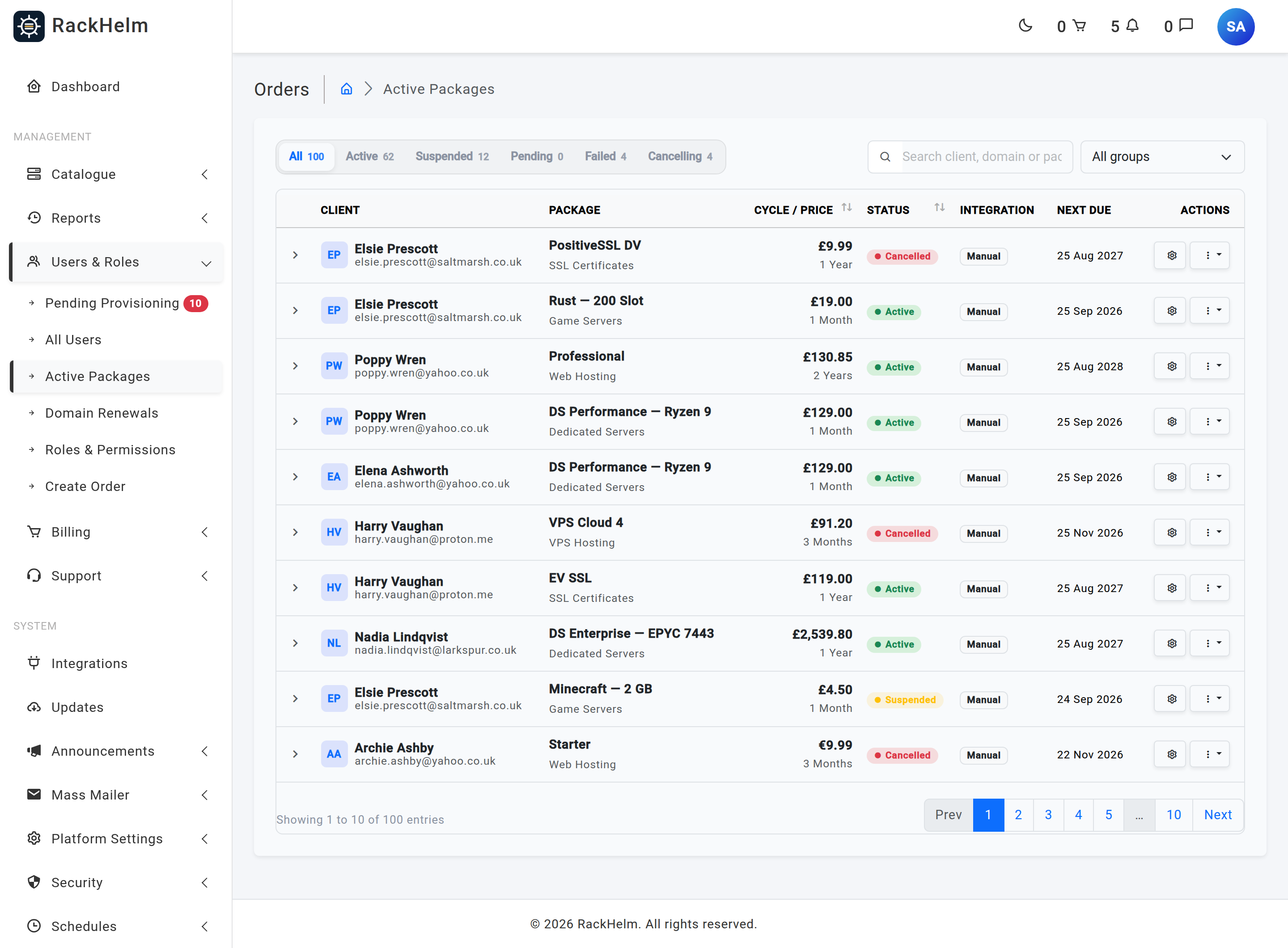
The table shows root packages only — parent items, never addons — belonging to an order whose status is active, paid, processing or pending_cancellation. Packages on a completed or cancelled order are not listed. Addons appear inside the expandable row of their parent instead.
Status pills #
Each pill is a blend of the two item state columns, so a pill is not the same as a single database value:
| Pill | Matches |
|---|---|
| All | Every root package on a live order. |
| Active | Not suspended, pending cancellation, cancelling or cancelled, and either provisioned or an item with no provisioning state at all whose package status is active. |
| Suspended | Package status suspended. |
| Pending | Provisioning status pending, queued or processing. |
| Failed | Provisioning status failed. |
| Cancelling | Package status pending_cancellation or cancelling. |
Columns and row actions #
| Column | What it shows |
|---|---|
| # | The package’s internal ID. Sortable. |
| Client | Initials avatar, name and email, linking to the client record. Shows Deleted User if the account is gone. |
| Package | Product name (linking to the package screen) with its product group beneath, or Uncategorized. |
| Cycle / Price | The package’s own unit_price with the order’s billing cycle beneath. Sortable on price. |
| Status | The combined badge described in The order lifecycle. Sortable on provisioning status. |
| Integration | The type of the integration configured on the product — the first one on the product, whether or not it is marked active — or Manual when none is bound. |
| Next due | The order’s due date. |
The chevron on the left expands a row to reveal Configured Variables — the values captured when the package was ordered — and Active Addons with each addon’s name, price and provisioning status.
The cog button opens the package. The dropdown beside it offers:
- Manage service — the package screen.
- View client — the customer’s admin record.
- Force provision — only shown when provisioning is
pending,queuedorfailed, and only to staff withedit_orders. - Recalculate resources — pushes the package’s current resource limits back to the remote panel. Only shown with
edit_orders.
The package screen #
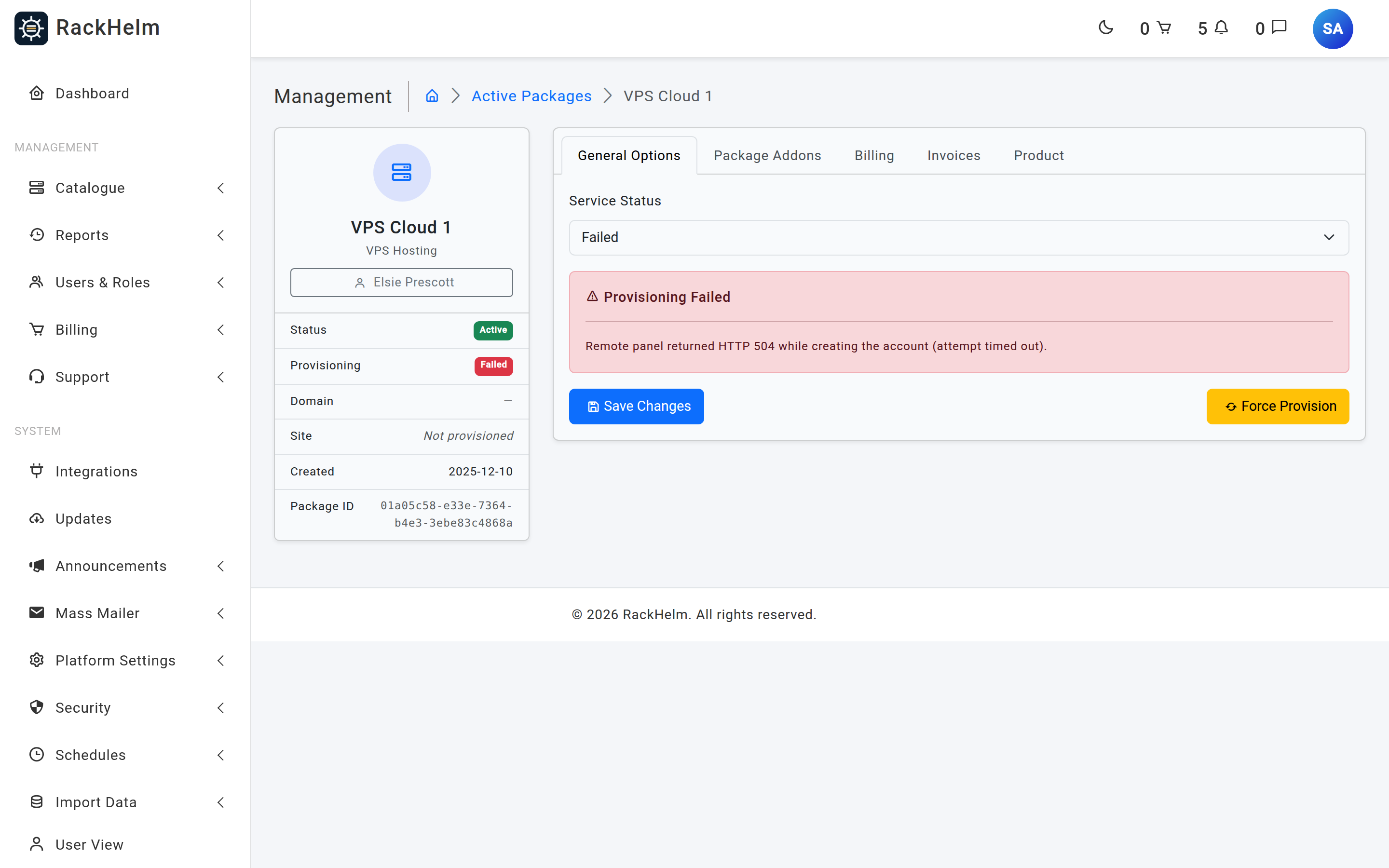
The sidebar shows the product, its group, a link to the client, and the two state columns as separate Status and Provisioning badges plus the creation date. The work is done in four tabs.
General Options #
One Service Status dropdown with six choices. Each writes a specific combination of the two columns:
| Choice | What it writes |
|---|---|
| Active | Package status active, provisioning provisioned. |
| Pending | Package status active, provisioning pending — this is how you hand a package back to the provisioning scanner. |
| Failed | Package status active, provisioning failed. |
| Suspended | Package status suspended only. This does not call the remote panel. |
| Pending Cancellation | Package status pending_cancellation, stamps the request time, sets expires_at to the order’s due date and records the reason Admin updated status. |
| Cancelled | Package status cancelled only. This does not tear down the remote service. |
When provisioning has failed, the stored error is printed here in a red panel above the buttons. Force Provision resets the package to pending, clears the stored error and dispatches a provisioning job immediately.
Warning: Suspended and Cancelled on this dropdown change the local record only. To actually switch a service off or destroy it on the remote panel, use the suspend and terminate actions described in Suspending, unsuspending and terminating a service.
Package Addons #
Two things live on this tab. Service Variables edits the package’s own configured values. Product Addons lists every addon available for this product with a tick box, a price field and any addon-specific fields; Save Configuration writes all of it at once.
Below the table, Attach New Addon adds an addon to the package immediately, at a price of £0.00 and with provisioning set to pending. Set its real price in the table and press Save Configuration afterwards, or the customer gets it free.
Recalculate Resources queues a job that recomputes the package’s resource grant from the parent plus all of its addons and pushes it to the panel. It is supported for Pterodactyl, GameCP, Enhance and eNom; for a Custom API integration it fires a resource_change event to your endpoint instead. Other integration types are a no-op.
Warning: Unticking an addon and saving does not just detach it — it marks the addon
cancellingand dispatches a termination job against the remote service. That is why removal requirescancel_orders, while adding and re-pricing addons only needsedit_orders.
Billing #
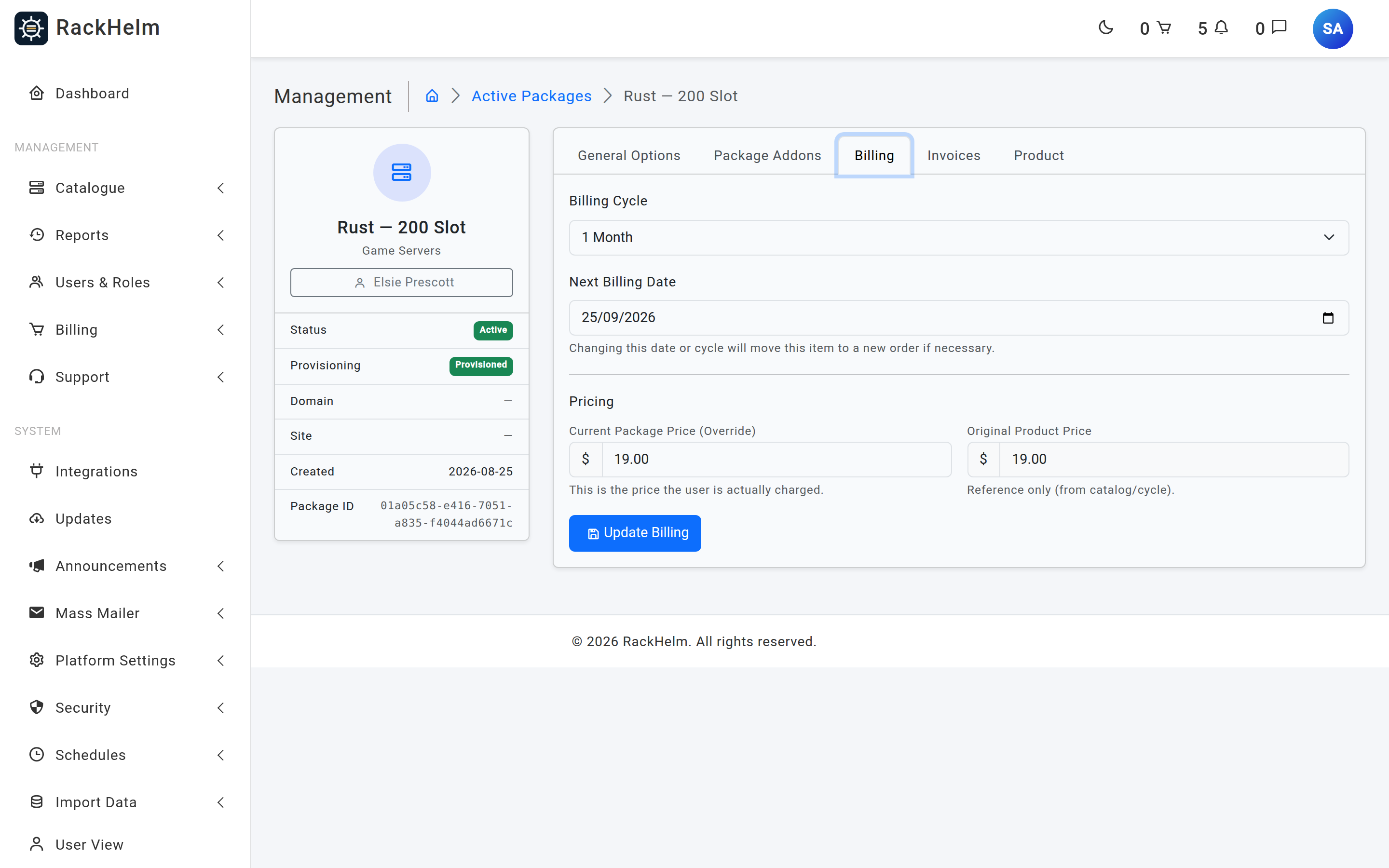
| Field | What it does |
|---|---|
| Billing Cycle | The cycle the package renews on, or One Time / Free. Must be an existing billing cycle. |
| Next Billing Date | The date the next renewal invoice is anchored to. Optional. |
| Current Package Price (Override) | Required, numeric, zero or more. This is the price actually billed, independent of the catalogue. |
| Original Product Price | Read-only reference: the catalogue price for the order’s cycle, or the product’s base price. |
The cycle and date belong to the order, not the package, so changing either has a knock-on effect:
- If this is the only root package on its order, the order itself is updated in place.
- If other packages share the order, RackHelm looks for another live order of the same customer already on that cycle and date and moves this package (and its addons) into it — creating one if none exists. This keeps each order on a single cycle and date so renewals stay correct.
Invoices #
The invoices raised against this package’s order, for quick reference while you work.
Deleting a package #
There is no delete button on the package screen. Deletion lives on the client’s own packages tab, under All Users → the client → Packages, and requires delete_orders. The confirmation offers an optional Also terminate the live remote service tick box, which additionally requires cancel_orders. Deleting soft-deletes the package and its addons, voids or reduces any outstanding invoice covering them, and soft-deletes the order once it has no items left.
Troubleshooting #
| Symptom | Cause and fix |
|---|---|
| The table fails to load as soon as you type in the search box | The search clause filters on a users.name column, which does not exist in RackHelm’s schema (clients are stored as first_name and last_name). Narrow the list with the status pills and the group filter instead, or find the client under All Users and open their packages tab. |
| A package you know exists is not in the list | Only root packages on an active, paid, processing or pending_cancellation order are listed. Check the order’s status on All Orders. |
| An addon is missing from the list | Addons are never rows of their own here. Expand the parent package with the chevron. |
| Attaching an addon did not charge anything | Attach New Addon deliberately creates the line at £0.00. Set the price in the addons table and press Save Configuration. |
| “This package already has this addon active.” | The package already carries that addon in a non-cancelled state. Edit the existing one instead. |
| Force Provision is not offered | It only appears when provisioning is pending, failed or queued. Set Service Status to Pending first, save, and the button appears. |
| Changing the billing date moved the package to a different order number | That is intended when other packages share the original order — see the Billing tab notes above. |


