RackHelm keeps two separate histories, and knowing which one answers your question saves a lot of time. The audit log records changes to data — who edited what, and what the values were before and after. The authentication log records sign-ins and sign-outs for one account, with IP address and approximate location.
Before you start #
Note: The audit log requires
view_audit_logs; an account’s authentication log requiresview_client_activityas well asview_clients. The two are separate on purpose —view_audit_logsis also deliberately separate fromview_settings, so a reviewer can read history without being handed the settings screens.
Tip: The sidebar entry Security → Audit Logs is only rendered for Super Admins, because the whole Security group is gated on a capability name that is never granted. Staff holding
view_audit_logscan still reach the screen at/admin/audit-logsdirectly.
The audit log #
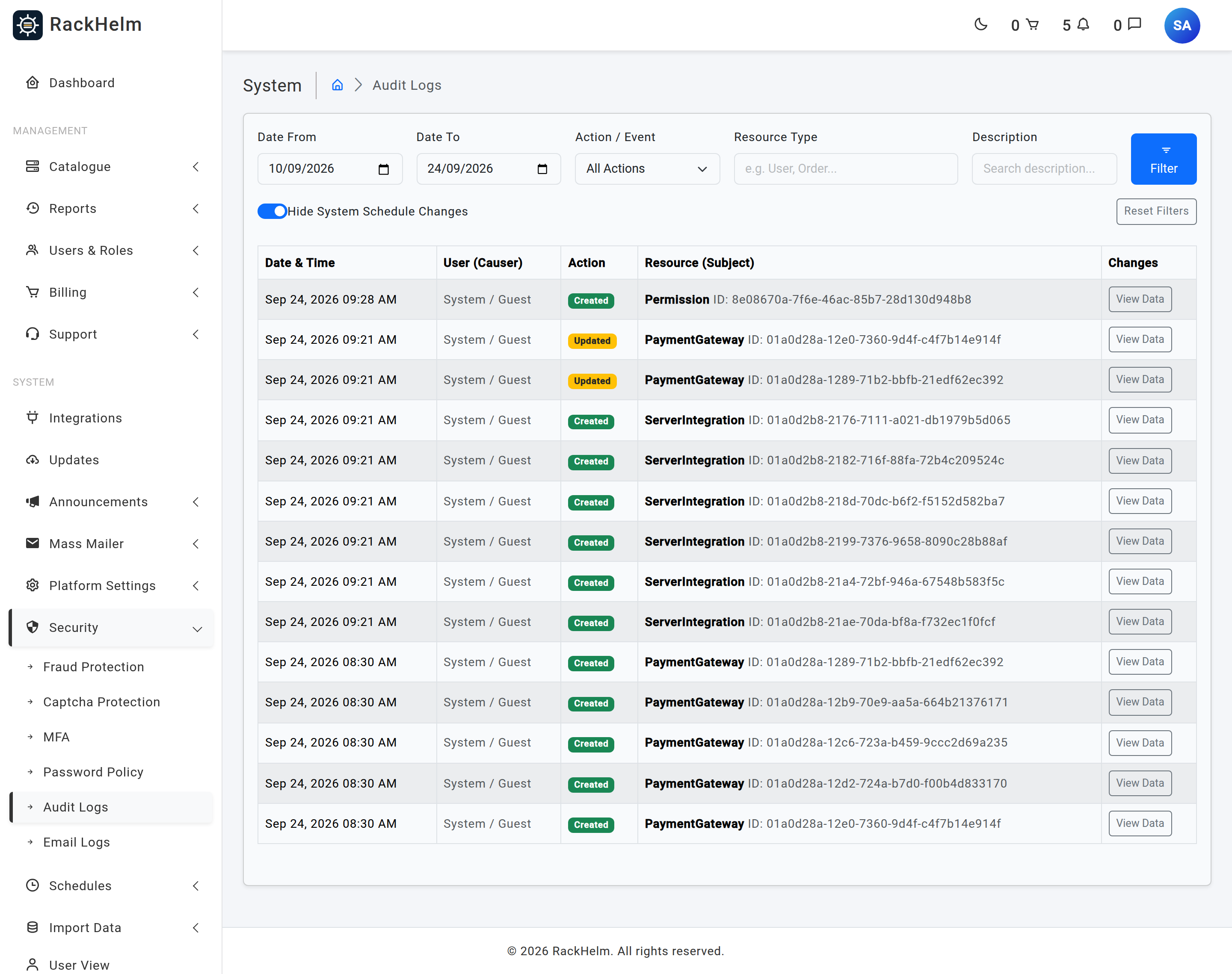
What gets recorded #
Most of the platform’s data models write to the audit log when they are created, updated or deleted — accounts, roles, permissions, addresses, countries, orders and order items, invoices and invoice entries, credit transactions, products, product groups, add-ons, billing cycles, custom fields, coupons, departments, canned replies, email routes and templates, payment gateways and stored payment methods, settings, server integrations and panel accounts, notification channels and subscriptions, sites, site templates, SSL certificates and system schedules.
Three rules shape what you actually see:
- Only changed attributes are stored. Saving a form without altering anything writes nothing.
- Passwords and session tokens are never recorded on account entries, even when they change alongside something else.
- Secrets are masked when the entry is displayed — settings values, panel credentials and integration configuration are redacted at render time, so historic entries written before masking existed still cannot be read out of the log.
Filtering #
| Filter | Behaviour |
|---|---|
| Date From / Date To | Inclusive of both whole days. Defaults to the last two weeks. |
| Action / Event | Usually created, updated or deleted. The list is built from the events actually present. |
| Resource Type | Free text matched against the model name — type User, Order, Invoice. |
| Description | Free-text search of the entry description. |
| Hide System Schedule Changes | On by default. Scheduled jobs update their own records constantly and would otherwise drown everything else. Turn it off if you are investigating the schedules themselves. |
Reading an entry #
Rows page at 50 and show Date & Time, User (Causer), Action, Resource (Subject) and a View Data button. The causer links to the account that made the change; System / Guest means no one was signed in — a queued job, a scheduled task, a gateway webhook or an unauthenticated request. View Data opens the stored attributes, which for an update includes both the old and new values.
Warning: The causer is whoever was signed in, which during an impersonation session is the customer, not the operator. See Impersonating a Client for what impersonation does and does not leave behind.
Authentication logs #
Open a customer in Users & Roles → All Users and select the Auth Logs tab. This is the screen to use for “was it really them?” questions.
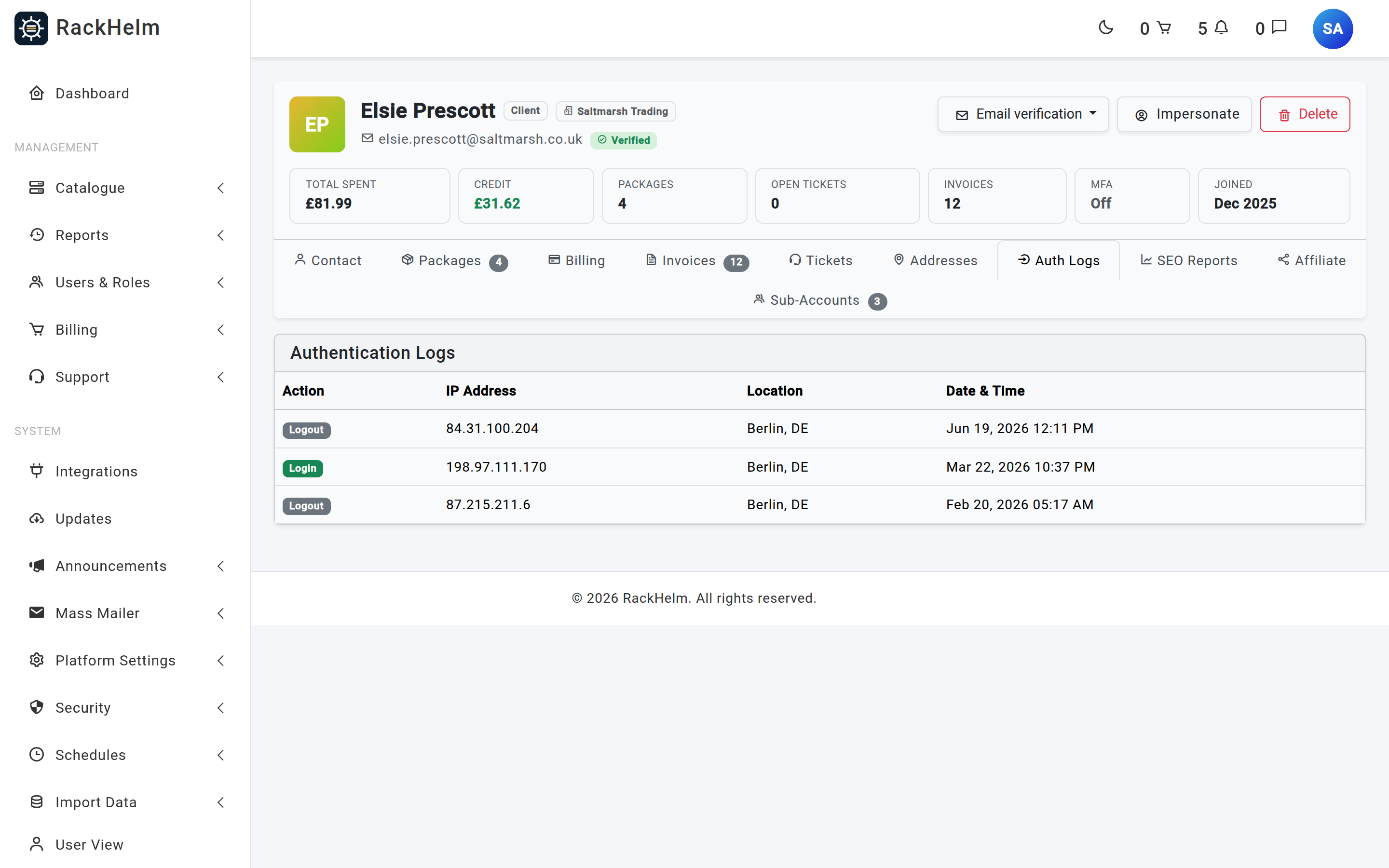
| Column | Meaning |
|---|---|
| Action | Login or Logout, plus an Auto badge where the session was restored from a remembered device. |
| IP Address | The address RackHelm trusts as the client’s. Where a proxy is in front of the portal, the full forwarded chain is stored too, though the tab shows only the resolved address. |
| Location | City and country, resolved from the IP address. Shows Localhost for local traffic and Unknown Location where the lookup did not return. |
| Date & Time | Server time, newest first, 15 rows per page. |
The geolocation lookup runs after the response has been sent, over HTTPS, with a two-second timeout, and failure is silent — sign-in is never delayed or blocked by it. That is why an entry can sit at Unknown Location permanently: the lookup was attempted once and did not answer.
Note: Impersonation does not appear here. Taking over and leaving a customer’s session are performed without raising sign-in events, so the customer’s history stays clean — but you also cannot use this tab to detect that a colleague impersonated them.
What customers can do themselves #
From Account → Edit Profile, under Device & Session Management, a customer can select Forget Devices & Log Out. The action asks for their current password, then revokes every 30-day trusted two-factor device, invalidates all other sessions and signs them out of the current one, returning them to the login page. It is the right advice when someone reports an unexpected entry in their sign-in history.
Retention #
Neither table is trimmed by any of RackHelm’s scheduled tasks, so both grow indefinitely. On a busy portal the audit log is by far the larger of the two. If you need to cap it, run the underlying clean-up command from the application directory on a schedule of your own:
php artisan activitylog:clean --days=365Warning: That command deletes history permanently. Check your own record-keeping obligations before choosing a retention period, and take a database backup first.
Troubleshooting #
| Symptom | Cause and fix |
|---|---|
| A change you know happened is not in the audit log. | Widen the date range — it defaults to two weeks — and turn off Hide System Schedule Changes if the subject is a schedule. |
| Nothing was logged when a form was saved. | No attribute actually changed, or the only changes were fields excluded from logging such as a password. |
| The causer reads System / Guest. | No user was signed in: a scheduled task, a queued job or an inbound webhook. Cross-reference the timestamp with the schedule. |
| An entry shows a value as masked. | Deliberate. Secrets are redacted when the entry is rendered, including in historic entries. |
| The Auth Logs tab returns 403. | You hold view_clients but not view_client_activity. |
| Every location reads Unknown Location. | The portal cannot reach the geolocation service, or outbound HTTPS is blocked. Sign-ins still work; only the labels are missing. |
| Every IP address is the same, and it is your load balancer. | The proxy is not passing a trusted forwarded header. Fix the proxy configuration; the raw forwarded chain is still stored on each entry. |
| A customer reports a login they do not recognise. | Check for an Auto badge — a remembered device — then have them sign out of all devices and change their password. |


