Account credit is a balance held against your account that can be spent on new orders and on automatic renewals. It is useful for paying a year ahead, for avoiding small card charges, and for holding refunds or prorated credits from package changes. This article covers checking your balance, topping it up, spending it, and how it behaves if your provider sells in more than one currency.
Checking your balance #
Open Credit Balance in the sidebar or go to /credit. The page shows:
- Current Balance — what you hold right now, in your account’s currency.
- Add Funds — the top-up form, if your provider allows deposits.
- Transaction History — every movement, ten to a page, with the Date, Description, Amount (positive for credits, negative for spends) and the Balance afterwards.
The balance also appears on your dashboard with a Manage Funds → link.
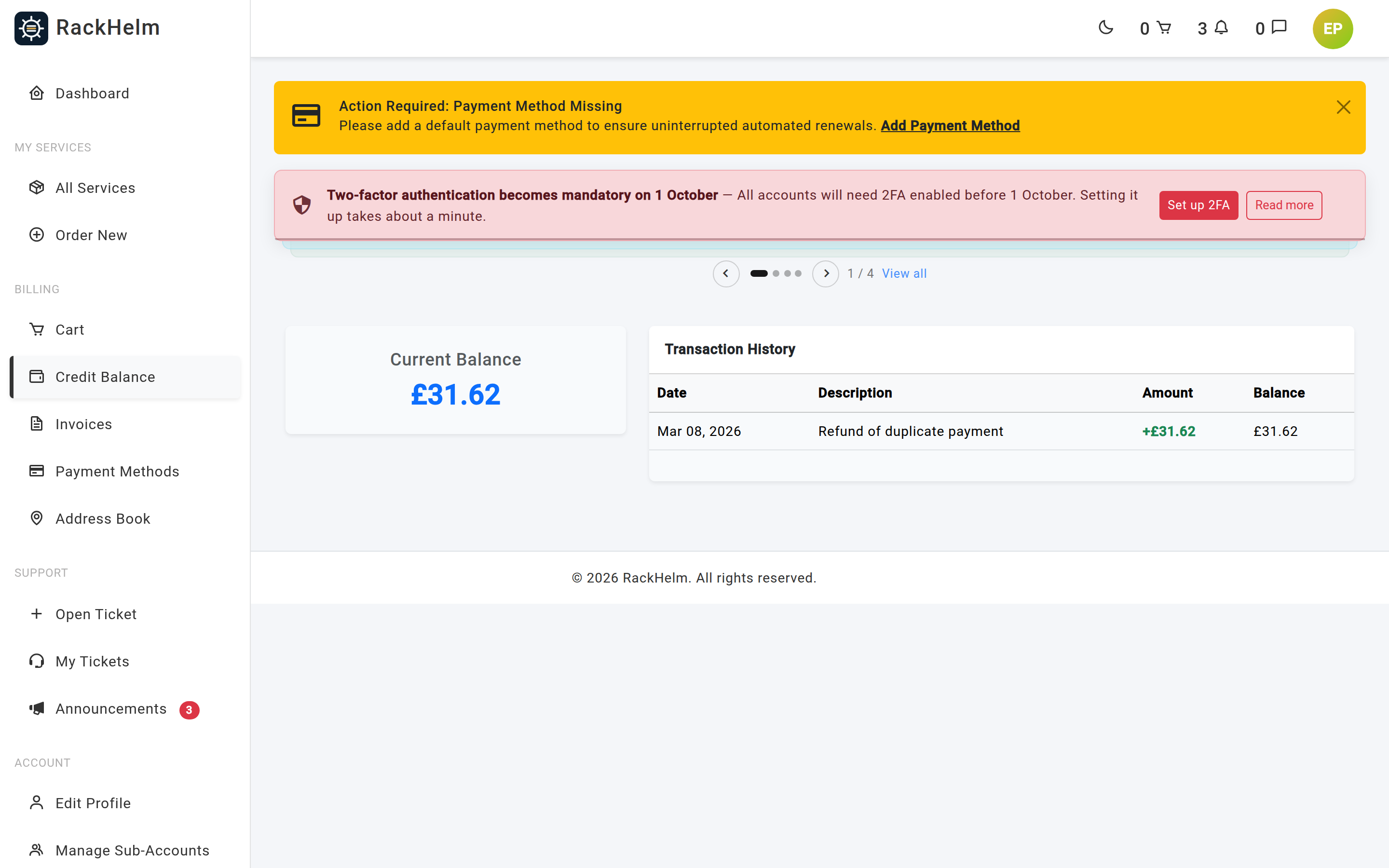
Note: Each history row is shown in the currency it was written in. If your account has ever changed currency, older rows keep their original figures rather than being restated — so a balance of €82.00 today may sit below a list of pound entries. That is correct: the two conversion rows in between record the change of unit.
Topping up #
- Enter an amount in the Amount box. It carries your currency’s symbol, and the figure you type is in your currency.
- Select Add Credit. A Credit Deposit line is placed in your cart and you are taken to it.
- Check out as normal — see The cart and checkout.
The credit lands on your account when the deposit invoice is paid, not when the order is placed. It then shows in your transaction history as Credit Deposit with the invoice number.
Deposits are bounded: the minimum is the equivalent of 5 and the maximum the equivalent of 1,000 in your provider’s own base currency. If you are billed in that base currency those are simply 5 and 1,000; otherwise they are converted at the current exchange rate, so the real limits sit a little either side of the round numbers.
Note: The box itself starts at 10.00 and will let you type 5 whatever your currency, because those figures are not converted on screen. If your currency is not the base one, an amount just above 5 may still come back rejected. Nudge it up and try again — the limit enforced when you submit is the converted one.
Note: If there is no Add Funds panel, your provider has turned deposits off. You can still receive credit from them — for example a refund or a prorated credit when you change a billing cycle — and spend it normally.
Spending credit #
At checkout #
When you hold a balance, the checkout page shows a Use Account Credit switch with your available balance beside it. Turning it on applies as much credit as the order needs, up to your balance, and the summary gains a Credit Applied line. If credit covers the whole total, the payment section is replaced by Your account credit covers the entire total. No payment method needed.
Where your provider charges tax, tax is added before credit is applied, so an order paid entirely from credit still shows the tax on its invoice.
On automatic renewals #
Turn on Use Credit First under Billing Preferences on your Edit Profile page. When a renewal is charged automatically, RackHelm takes as much as it can from your credit and charges the remainder to your default payment method.
One rounding rule applies: card gateways will not process very small amounts, and the floor depends on the currency — 50p in sterling, 50 cents in dollars or euros. If the leftover would be smaller than that, the charge is raised to the minimum and correspondingly less credit is used, so the invoice still balances exactly.
Tip: Keep a payment method saved even when you rely on credit. If the balance runs out mid-cycle, the renewal falls back to your default method instead of failing.
On an existing invoice #
There is no button in the portal for paying an open invoice from your balance. Credit is applied when you check out, and on automatic renewals when Use Credit First is on. To put a balance towards an invoice that is already sitting unpaid, ask your provider — they can apply it for you.
A balance cannot cross currencies #
Your credit is held in one currency. An invoice raised in a different one — a renewal from before you changed currency, or an invoice your provider raised in another currency — cannot be paid from it, and the automatic renewal run leaves the balance alone and charges your card in full instead. Nothing is converted behind your back. If you need the balance moved, ask your provider to convert it.
Changing your currency #
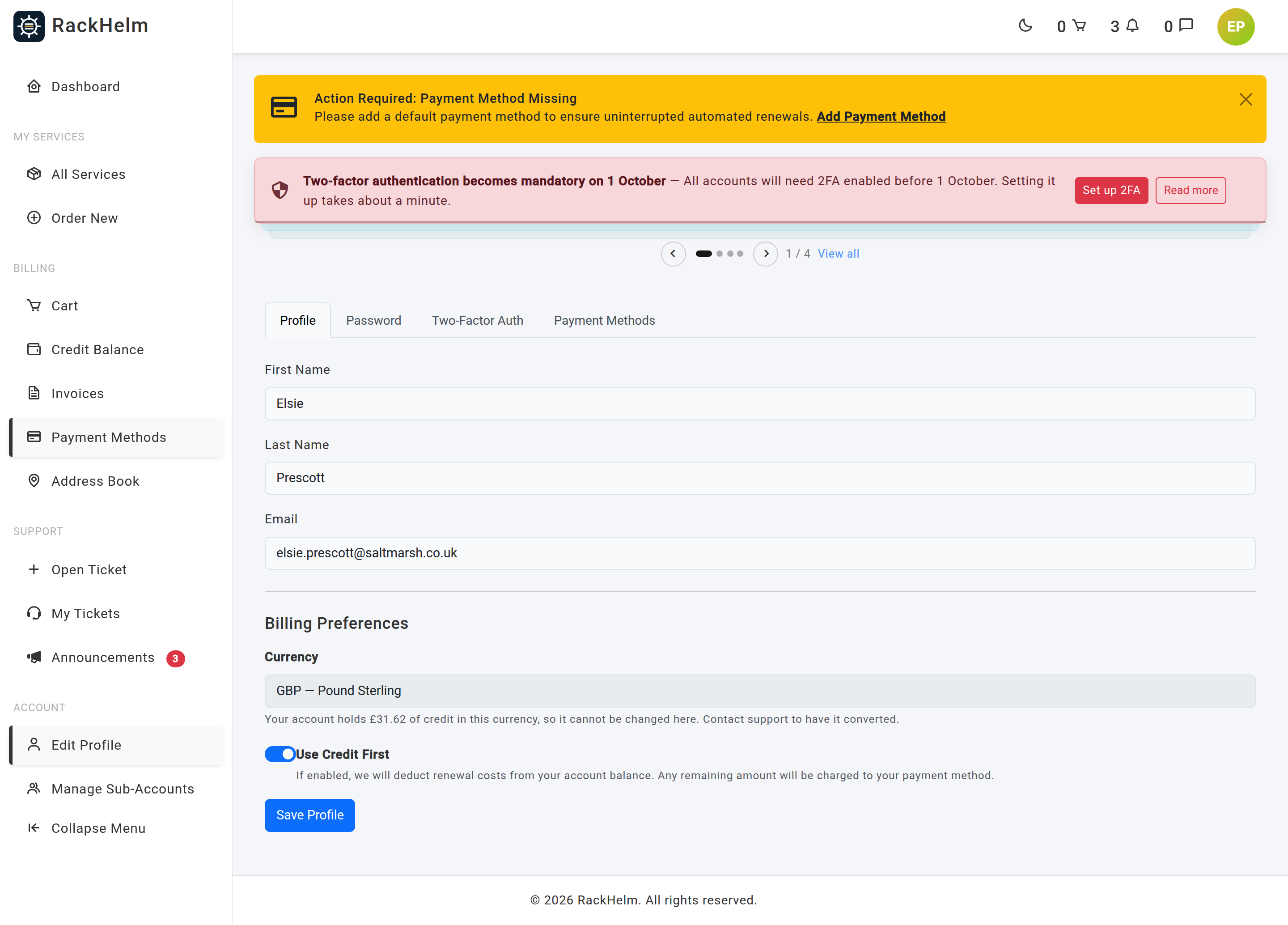
If your provider sells in more than one currency, you can change yours from the selector in the store header or from Currency under Billing Preferences on your Edit Profile page. Store prices and your future invoices follow it; services you already have keep the currency they were bought in.
Warning: While you hold any credit, you cannot change currency yourself. The field is shown disabled with your balance beside it, and the header selector disappears; attempting it gives “Your account holds credit in GBP, so your currency cannot be changed here. Contact support to have it converted.” Your provider converts the balance and moves the currency in one step. Spending the balance down to zero also unlocks it.
Note: Switching currency also clears basket lines the new currency cannot buy — a pending credit top-up, and any product your provider does not sell in that currency. A product sold elsewhere shows a “Sold in CODE only” badge with a one-click Shop in CODE button. If you are on a sub-account, the currency is the account owner’s and you cannot change it at all.
How credit arrives without a top-up #
- Changing billing cycle — unused time on the old cycle is worked out as a prorated credit and applied against the new invoice.
- Upgrades — the same proration applies when you upgrade instantly.
- A cancelled or voided invoice — credit that had been applied to it comes back to your balance.
- Provider adjustments — refunds and goodwill credits appear in the transaction history with your provider’s description.
- A currency conversion — two rows, one removing the old-currency balance and one adding the converted amount, with the rate used written into the description.
Troubleshooting #
| Symptom | Cause and fix |
|---|---|
| The top-up form rejects your amount | Deposits must fall between the equivalent of 5 and 1,000 in your provider’s base currency. Try a slightly larger figure, or split a big top-up across several deposits. |
| “Credit deposits are disabled.” | Your provider has switched top-ups off. Raise a ticket if you need to add funds. |
| “System error: Credit Deposit product not found.” | The provider’s credit product is missing from their catalogue. Raise a ticket — this needs fixing on their side. |
| The balance did not change after ordering a top-up | Credit is added when the deposit invoice is paid. Check Invoices for an unpaid deposit invoice. |
| A top-up credited a different figure from the one you paid | Your currency changed between raising and paying it, so the payment was converted. The history row records the original amount and the conversion. |
| The Use Account Credit switch is missing at checkout | It only appears when your balance is above zero. |
| A renewal charged your card even though you had credit | Use Credit First is off — turn it on in your profile, and note it applies to future renewals only. If it is already on, the invoice is in a different currency from your balance, which credit cannot cross. |
| A 50p charge appeared alongside a credit deduction | Expected. Cards have a minimum charge, so a smaller remainder is rounded up to it and less credit is spent. |
| You cannot change your currency | You hold credit, or you are on a sub-account. Ask your provider to convert the balance, or spend it down to zero first. |
| Coupons do not discount a top-up | By design — promo codes never apply to credit deposits. A top-up also cannot be paid with credit. |


