Your profile holds the name and email address your provider contacts you on, your password, and one billing preference. Everything lives on a single settings page with four tabs. This article covers the Profile and Password tabs, and explains where email preferences are controlled.
Opening your settings #
Select Edit Profile in the sidebar, or go to /settings. The tabs are:
| Tab | What it holds |
|---|---|
| Profile | Name, email address and billing preferences. |
| Password | Change your password. |
| Two-Factor Auth | Two-step sign-in — see Two-factor authentication. |
| Payment Methods | Saved cards and agreements — see Saved payment methods. |
The page remembers which tab you were last on. You can also link straight to one, for example /settings?tab=twofactor.
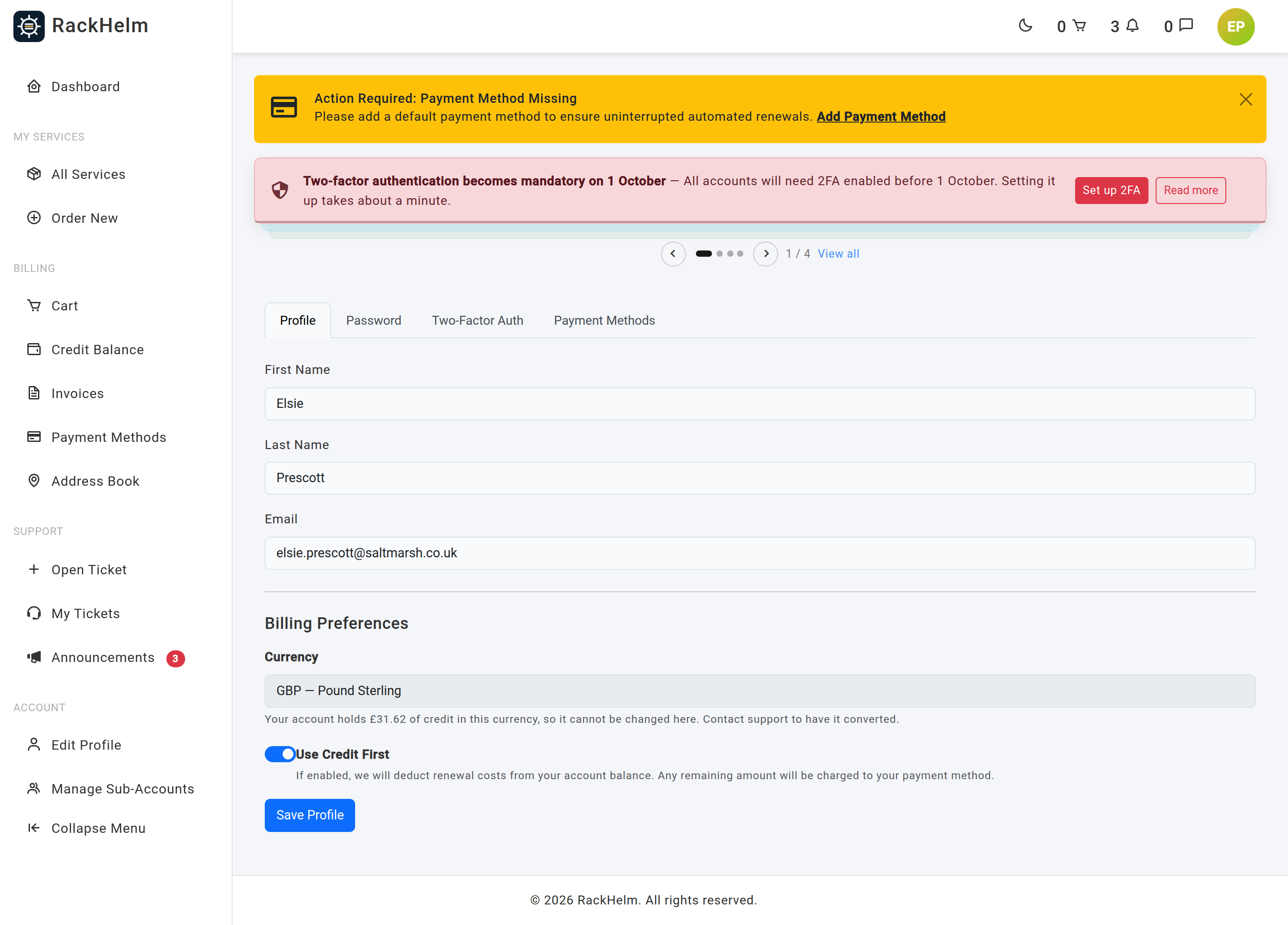
Updating your details #
- On the Profile tab, edit First Name, Last Name or Email.
- Select Save Profile.
- Enter your account password when prompted.
Warning: Changing your email address clears verification on your account and sends a fresh verification link to the new address. Until you click it you cannot use the client area — so only change it to an address you can read immediately. Password resets go to the new address from that point on.
Billing preferences #
The Use Credit First switch controls automatic renewals. With it on, renewal costs are taken from your account balance and only the remainder is charged to your payment method. With it off, renewals always go to your payment method and credit is only used when you choose it yourself.
The switch applies to renewals from that point onwards; it does not retrospectively change invoices already charged. See Paying with account credit.
Changing your password #
- Open the Password tab.
- Enter your Current Password, then the new one in New Password and Confirm New Password.
- Select Update Password.
The strength meter shows the rules your provider enforces — minimum length (8 by default) and, where enabled, upper and lower case, a digit, a symbol and a check against publicly leaked passwords.
Email you receive, and opting out #
RackHelm sends two kinds of email:
- Transactional — invoices, payment confirmations and failures, ticket replies, verification and password-reset links, service notices. These cannot be turned off; they are the record of your account.
- Marketing campaigns — optional announcements and offers. Every campaign email carries an unsubscribe link at the bottom. Following it and confirming stops future campaigns immediately.
Note: There is no marketing opt-out switch inside the portal — unsubscribing is done from the link in a campaign email. Unsubscribing does not affect invoices, ticket replies or any other transactional message.
Ending other sessions #
To sign out everywhere at once — a lost laptop, a shared computer — use Forget Devices & Log Out on the Two-Factor Auth tab. It clears trusted devices, signs out every other session and signs you out too.
Troubleshooting #
| Symptom | Cause and fix |
|---|---|
| Saving the profile asks for your password | Expected — profile changes are treated as sensitive. The prompt allows five attempts a minute. |
| “The email has already been taken.” | Another account already uses that address, including sub-accounts. Choose a different one. |
| You are locked out of the client area after changing your email | Verification was reset. Open the link in the new address’s inbox, or use Resend Verification Email. |
| The new password is rejected | It fails a rule your provider enforces. The meter shows which. A password found in a public breach list is refused even if it is long. |
| “The current password is incorrect.” | The Current Password box does not match. If you cannot remember it, sign out and use Forgot Password ?. |
| Renewals ignore your credit balance | Use Credit First is off, or the balance was zero when the renewal ran. |
| The page always opens on the same tab | Your browser remembers the last tab you used. Select another tab, or add ?tab=profile to the address. |
| You are redirected to the Two-Factor Auth tab whatever you click | Your provider requires two-factor authentication on your account. Complete enrolment to continue. |


