Payments reach RackHelm four different ways: the customer pays online, the automatic charge run takes the money, account credit covers it, or you record an offline payment by hand. This article explains what each path does, how to mark an invoice paid correctly, and how to handle refunds — which, in this build, are not a button in the admin area. It is written for operators and staff.
Before you start #
- The invoice action menu sits behind
edit_invoices. Individual actions are gated further: Mark as Paid needsmark_invoices_paid, Send Reminder needssend_invoice_reminders, and Delete needsdelete_invoices. - The seeded Billing Manager role holds
mark_invoices_paidandrefund_invoices, but notdelete_invoicesorsend_invoice_reminders. - Authorisation is checked against every selected invoice before anything runs, so a bulk action you are not entitled to perform returns 403 and changes nothing.
How a payment normally arrives #
| Path | What happens |
|---|---|
| Customer pays online | From Invoices → (open invoice) → Pay Now in the client portal. RackHelm creates a Stripe PaymentIntent for the invoice total, the customer confirms it in the browser, and the return trip settles the invoice. The intent is bound to the invoice by its own metadata, and the amount collected is reconciled against the invoice total before anything is marked paid. |
| Stripe webhook | The backstop for a customer who closes the tab mid-payment. See Stripe setup. |
| Automatic charge run | The Process Due Invoices schedule queues one charge attempt per due invoice against the customer’s default (or pinned) saved method. |
| Account credit | Applied automatically at checkout and on renewals when the customer has enabled it. See Account credit. |
| Offline / bank transfer | No automatic pull is possible. You record it manually with Mark as Paid. |
Warning: A payment that collects less than the invoice total is deliberately not accepted as settlement. The invoice stays open and an error is written to the application log naming the invoice, the payment reference and both figures in pence, for a human to reconcile. Search the log for “Short payment on Invoice” if a customer insists they have paid.
Recording a payment by hand #
- Open Billing → Invoices, or open the individual invoice.
- Tick the invoice (on the list) or use the Actions… selector (on the invoice page).
- Choose Mark as Paid and select Apply.
Marking paid is not a status flip. It runs the single settlement routine every payment path uses, which:
- sets the status to
paidand stampspaid_at; - advances the next due date on every order the invoice covers — including all of them on a merged invoice;
- queues any domain renewals the invoice paid for, guarded so a repeated signal cannot buy a second term;
- reactivates services that were suspended for non-payment;
- credits the customer’s balance if the invoice was a credit deposit;
- pushes upgraded resources live if the invoice was an upgrade difference;
- regenerates the PDF, and emails the customer a “Payment Successful” receipt naming the amount.
Tip: Clicking Mark as Paid twice is safe. The routine detects that the invoice is already paid, does nothing further, and sends no second receipt.
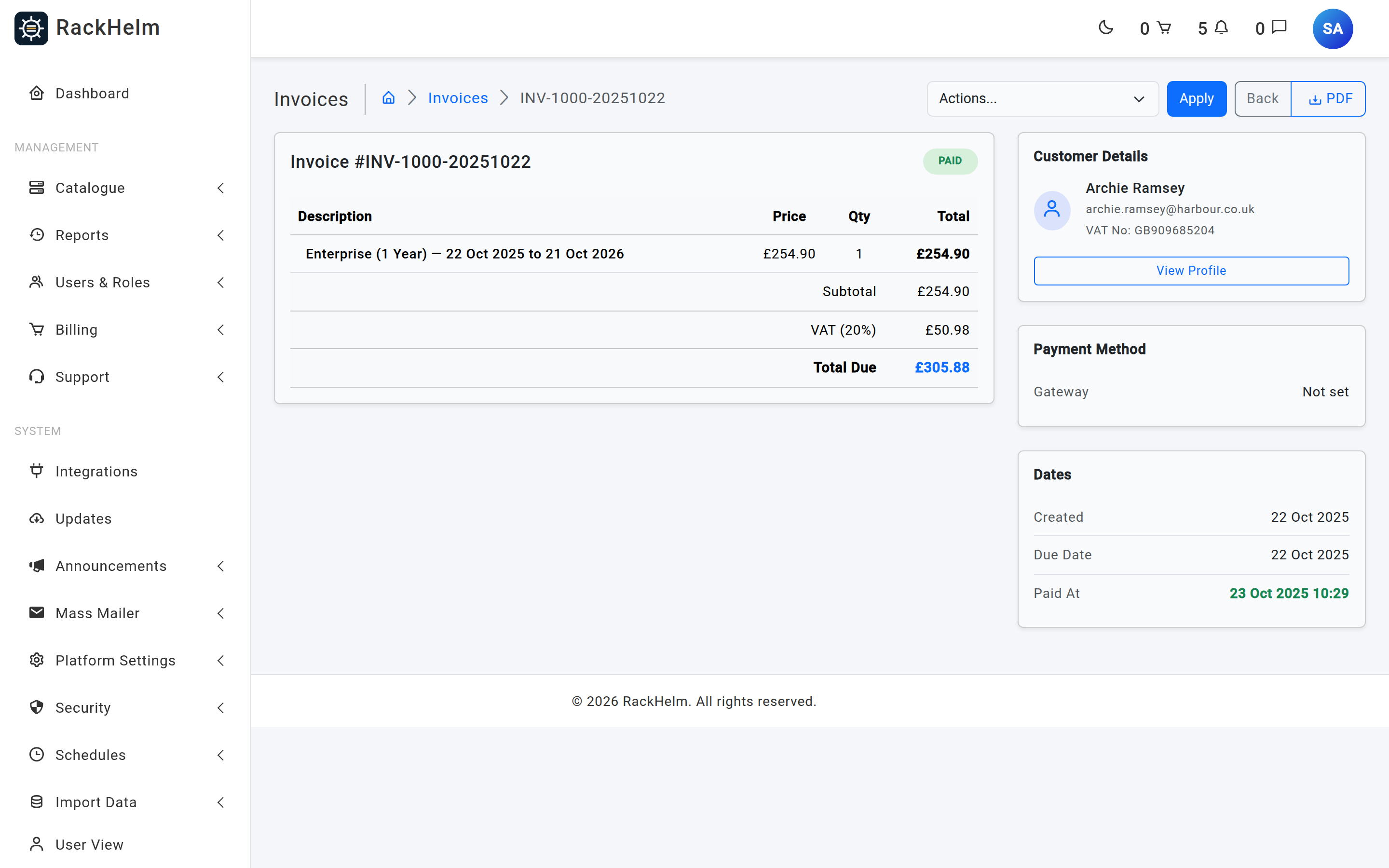
The full action list #
| Action | What it does | Permission |
|---|---|---|
| Mark as Paid | Full settlement, as above. | mark_invoices_paid |
| Mark as Pending | Sets status pending and clears paid_at. Does not reverse due-date advances or refund anything — use it to reopen an invoice you settled by mistake, then correct the order manually. |
edit_invoices |
| Mark as Void | Sets status void and clears paid_at. Voided invoices are excluded from the duplicate-billing check, so the period becomes billable again. |
edit_invoices |
| Process Invoice(s) | Resets the invoice to pending and queues an immediate charge attempt against the customer’s saved card. This moves real money. |
edit_invoices |
| Regenerate PDF | Re-renders the document from current data and the currently selected template. | edit_invoices |
| Send Reminder | Intended to email the customer a reminder for this invoice. | send_invoice_reminders |
| Void & Regenerate from Order | Voids the invoice and rebuilds it from the underlying order. A confirmation dialog offers Alert user via email, ticked by default. Refuses to act on a paid invoice. |
edit_invoices |
| Delete Invoice(s) | Removes the invoice record permanently. | delete_invoices |
Warning: Send Reminder from this menu does not work in the current build — it hands the reminder job the invoice’s order where the job expects the invoice itself, and the request errors. Use the Invoice Reminders schedule for reminders (see How invoicing works), and chase individual customers by ticket or email until this is fixed.
Warning: Process Invoice(s) charges the card immediately. Do not use it to “refresh” an invoice’s appearance — that is what Regenerate PDF is for.
Refunds #
RackHelm has a refund_invoices permission and a matching policy, but there is no admin screen or action that sends a refund to a gateway. The only automatic refund in the system is a safety net during checkout: if payment succeeds but the order cannot be created (for example two customers race the last use of a limited coupon), RackHelm reverses the charge itself — through Stripe’s refund API, PayPal’s capture-refund endpoint or Square’s refunds endpoint as appropriate — and raises an operator alert. If that automatic reversal also fails, a “Manual refund required” alert is raised naming the gateway, charge reference and amount.
Refunding a customer in practice #
- Issue the refund in the gateway’s own dashboard (Stripe, PayPal or Square), against the transaction reference stored on the invoice.
- In RackHelm, decide what the invoice should now say. For a full reversal, Mark as Void. For a partial reversal there is no partial-payment ledger, so leave the invoice paid and record the adjustment as credit instead.
- If the customer is to keep the money on account rather than back on their card, add it as account credit from Users → (customer) → Billing with a clear reason — see Account credit.
- Note the gateway refund reference in the customer’s ticket or in the credit reason so the two sides reconcile later.
Note: A package change or a billing-cycle change already prorates automatically: the unused value is applied to the difference invoice as a negative line, and anything left over is added to the customer’s balance as a credit-ledger entry rather than refunded to a card. Do not refund that a second time by hand. A cancellation does not mint credit — it voids or reduces the pending invoice instead.
Where the transaction reference lives #
Once an invoice settles, the gateway’s own identifier is written into the invoice’s meta as transaction_id, alongside the gateway slug. For a Stripe payment that is the PaymentIntent id; for PayPal, the capture id; for Square, the payment id; for a bank transfer taken at checkout, a generated BT-… reference for the customer to quote. An invoice fully covered by account credit records the literal value Account Credit.
Troubleshooting #
| Symptom | Cause and fix |
|---|---|
| 403 on a bulk action | You lack the specific permission that action maps to. The whole batch is refused before anything runs, so nothing is half-applied — grant the permission and retry. |
| Marked paid, but the service is still suspended | Reactivation is queued. Check that a worker is consuming the queues, then re-check the order item. If the invoice was already paid, the settlement routine did nothing at all — mark it pending and paid again to re-run it. |
| Marked paid, but the next due date did not move | The invoice has no resolvable orders — most commonly a custom invoice, whose ghost order has no items. Adjust the service’s next due date on the order directly. |
| Customer paid but the invoice is still open | Either the amount collected was short of the total (search the log for “Short payment on Invoice”), or the Stripe webhook is not reaching the portal. See Stripe setup. |
| A card was charged twice | Very unlikely — the checkout capture is serialised per order with a lock, the gateway call carries an idempotency key, and the automatic charge job is unique per invoice. Check the gateway dashboard for two distinct references before refunding; if there really are two, refund one in the gateway. |
| “Bank transfer awaiting confirmation” alert | The customer’s default method is Bank Transfer, so the invoice was set to unpaid with a reference rather than charged. Confirm the funds arrived, then Mark as Paid. |
| Delete Invoice is missing or 403s | delete_invoices is not granted to the Billing Manager role by default. Grant it deliberately — deletion is permanent. |


