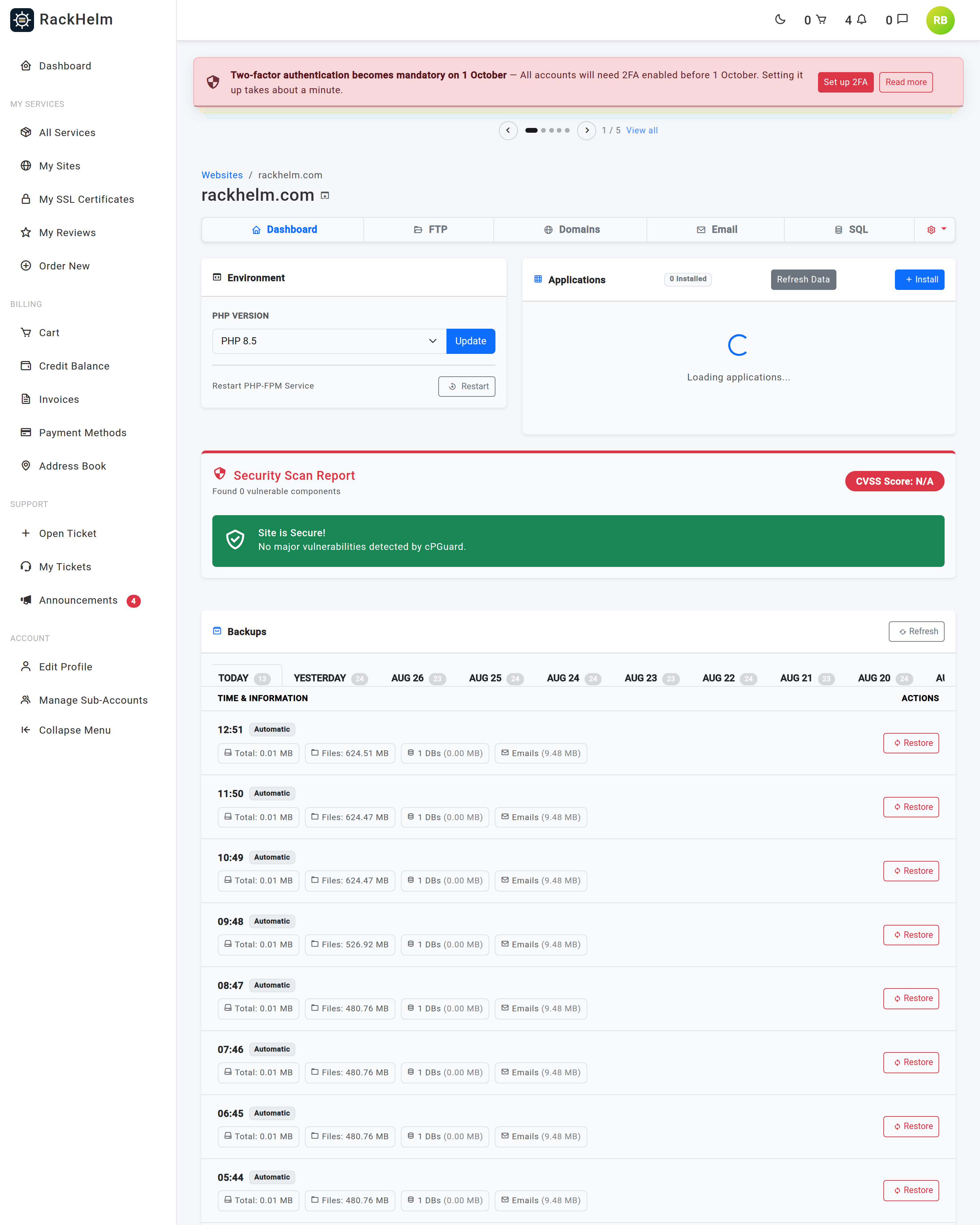
The Applications card on a site’s dashboard installs WordPress and other applications, opens the WordPress admin, updates WordPress core and removes an installation. Open My Sites → your site — the card is on the right. It works on Enhance, cPanel and Plesk hosting, but three of its buttons behave differently on each, and two of them do nothing at all on one panel. Those differences are named below rather than buried.
Reading the application list #
Each row shows the application, its version, and the path it is installed at — / (Root) when it serves the whole site, or a folder such as /blog. WordPress rows are labelled WordPress [Latest – version]; other applications show their name and version.
Expanding a row reveals a small property table. Every application shows its Version; WordPress also shows Plugin Count and Theme Count.
The count badge in the card header and the list itself come from a cache that is 10 minutes old at most. Refresh Data in the header clears it and returns “Application data successfully refreshed from the server.”
Note: On cPanel the list is not taken from cPanel’s own record of what it installed — that record has been observed to keep reporting a WordPress site long after every file and its database were deleted, and to miss fresh installs entirely. Instead the account is scanned for WordPress itself. That means the list is right immediately after an install or an uninstall, and it also finds installs made outside the portal, which cPanel’s record never knew about.
Installing WordPress #

- Select Install in the card header.
- Choose the Application. The list is built from what your provider’s panel offers, reduced to the newest version of each; the current WordPress release is pre-selected and marked [Recommended]. On cPanel and Plesk the list is WordPress and nothing else, because that is all those panels install.
- Set the Installation Path. Leave it empty to install at the site root, or enter a folder name such as
blog. Read the warning below first if you are on cPanel. - Enter the Admin Username, Admin Password and Admin Email for the new WordPress administrator. All three are required and the email must be valid.
- Select Install Application.
The install is queued and runs in the background: “WordPress is now installing in the background. It will be available in a minute or two.” Use Refresh Data afterwards to make it appear.
Warning: That message is shown whether or not the install can succeed. The job runs after you have been sent back to the dashboard, so a refusal from the panel never reaches you — the installation simply never appears. If nothing has shown up after a few minutes of pressing Refresh Data, the install failed and your provider will need to read the log to say why.
Warning: On cPanel hosting, WordPress can only be installed at the site root and only into an empty one. A folder in Installation Path is refused (“On cPanel hosting WordPress is installed at the site root. Leave the installation path blank and try again.”), as is a second install (“WordPress is already installed on this site. Uninstall it first if you want a fresh copy.”) and a root that already holds files. Because of the warning above, all three look identical from the dashboard: nothing happens. Leave the path blank on cPanel. Enhance and Plesk both install into a sub-folder happily.
Warning: Installing at the site root over an existing site will overwrite what is already there on panels that allow it. Install into a folder if the root is in use.
Opening the WordPress admin #
The SSO button on a WordPress row opens the WordPress admin in a new tab. What it can do there depends on the panel:
| Panel | What the SSO button does |
|---|---|
| Enhance | Opens wp-admin already signed in as an administrator. No WordPress password needed. |
| cPanel | Opens your site’s /wp-login.php page. You still sign in with the WordPress credentials you set at install time — cPanel has no single sign-on for WordPress without WP Toolkit. |
| Plesk | Cannot work. It returns “Unable to connect to WordPress SSO. The application may still be installing or is in a broken state.” Use the Log In button on the installation in Plesk’s own WP Toolkit, which signs you in without a password. |
Warning: On Enhance, anyone who can sign into your portal account can reach your WordPress admin through this button without knowing the WordPress password. Keep your portal password strong and two-factor authentication switched on.
Updating WordPress core #
Expand the WordPress row. If an update is available, the second button reads Update to version; select it and you get “WordPress core update triggered.” If the site is current, the button reads Up to Date and does nothing.
Warning: On cPanel hosting the Update to … button is shown when an update exists, but cPanel cannot apply one from here — selecting it produces an error page rather than a message. Update WordPress from the WordPress dashboard instead: use SSO to reach
/wp-login.php, sign in, and update there. Enhance and Plesk both apply core updates from this button.
Note: Only WordPress core can be updated from here. Plugins and themes are updated inside the WordPress admin. The Security Scan Report tells you which of them are known to be vulnerable.
The Manage button #
The Manage button in an expanded row returns you to the dashboard with “Advanced WordPress management module is currently in development.” The deeper WordPress management screen is not built in this release; manage the site in WordPress itself.
Uninstalling an application #
Uninstall Application at the bottom of the expanded row asks you to confirm “Are you sure? This will delete the files and database for this application.” and then asks for your account password. You get “Application uninstallation started.”
Warning: This removes both the files and the database for that installation. Take a backup first if there is any chance you will want the content back — and note that on cPanel and Plesk a restore has to be done by your provider, so ask before you uninstall rather than after.
Note: On cPanel the uninstall is careful about what it touches. At the site root only WordPress’s own files are removed, so anything else you keep there survives; the database name and user are read out of that install’s
wp-config.php; the database is dropped only if your account owns it; and the database user is dropped only when that database was the only one it could reach, so a user shared with another site is left alone.
A sensible routine #
- Check the Applications card for a core update, and the Security Scan Report for vulnerable plugins and themes.
- Take a backup, or ask your provider for one if your panel does not offer restores from the portal.
- Apply the core update — from the portal on Enhance and Plesk, from wp-admin on cPanel.
- Sign into WordPress and update plugins and themes there.
- Load the front page, a content page and a form to confirm nothing broke.
Troubleshooting #
| Symptom | Cause / fix |
|---|---|
| “Unable to connect to WordPress SSO. The application may still be installing or is in a broken state.” | On Plesk this is expected — use WP Toolkit’s Log In button. Elsewhere the panel could not create a sign-in session: wait a minute if the install is recent, otherwise sign in at /wp-admin with the credentials you set at install time. |
| “Could not generate SSO URL.” | The panel returned no link. Try again; if it persists, open a ticket. |
| A newly installed application does not appear. | The list is cached for 10 minutes and installation runs in the background, so use Refresh Data first. If it is still missing after a few minutes, the install failed silently — see the warnings above, and on cPanel check that you left the path blank. |
| The install dialog says “No applications available right now”. | The hosting panel did not return an application catalogue for this site. Try again in a few minutes, and contact support if it keeps happening. |
| “Uninstallation failed: …” | The message after the colon comes from the panel. Common causes are an installation already partly removed, or files locked by a running process. Open a ticket. |
| The Editor (WIP) row disappeared. | Expected — it is only shown while no application is installed. See the website builder. |
| “Failed to connect to the panel to refresh data.” | The control panel was unreachable. Reload the dashboard and try again. |
WordPress works but plugin counts read -. |
The panel did not return those figures. It has no effect on the site. |
| A WordPress install you made yourself appears in the list. | Expected on cPanel, where the account is scanned rather than a registry read. It can be managed and uninstalled from here like any other. |


