The individual ticket screen is where the actual support work happens. It puts the conversation in the middle, the customer’s context on the right, and a composer that can reply and set the resulting status in one action. This article walks through every part of it and is for the agents who live on it.
Before you start #
Note: Opening a ticket requires
view_ticketsand that the ticket is in scope for you: it is in one of your departments, it is assigned to you, or it has no department at all. A holder oftickets.view_all_departments— Super Admin via the*wildcard — sees every ticket. Replying requiresreply_tickets; changing the properties requiresassign_tickets; closing requiresclose_tickets; deleting or marking as spam requiresdelete_ticketsandclose_ticketsrespectively. Every one of those abilities carries the same scope check, so a permission on its own never lets you walk into another department’s thread. See Roles & Permissions.
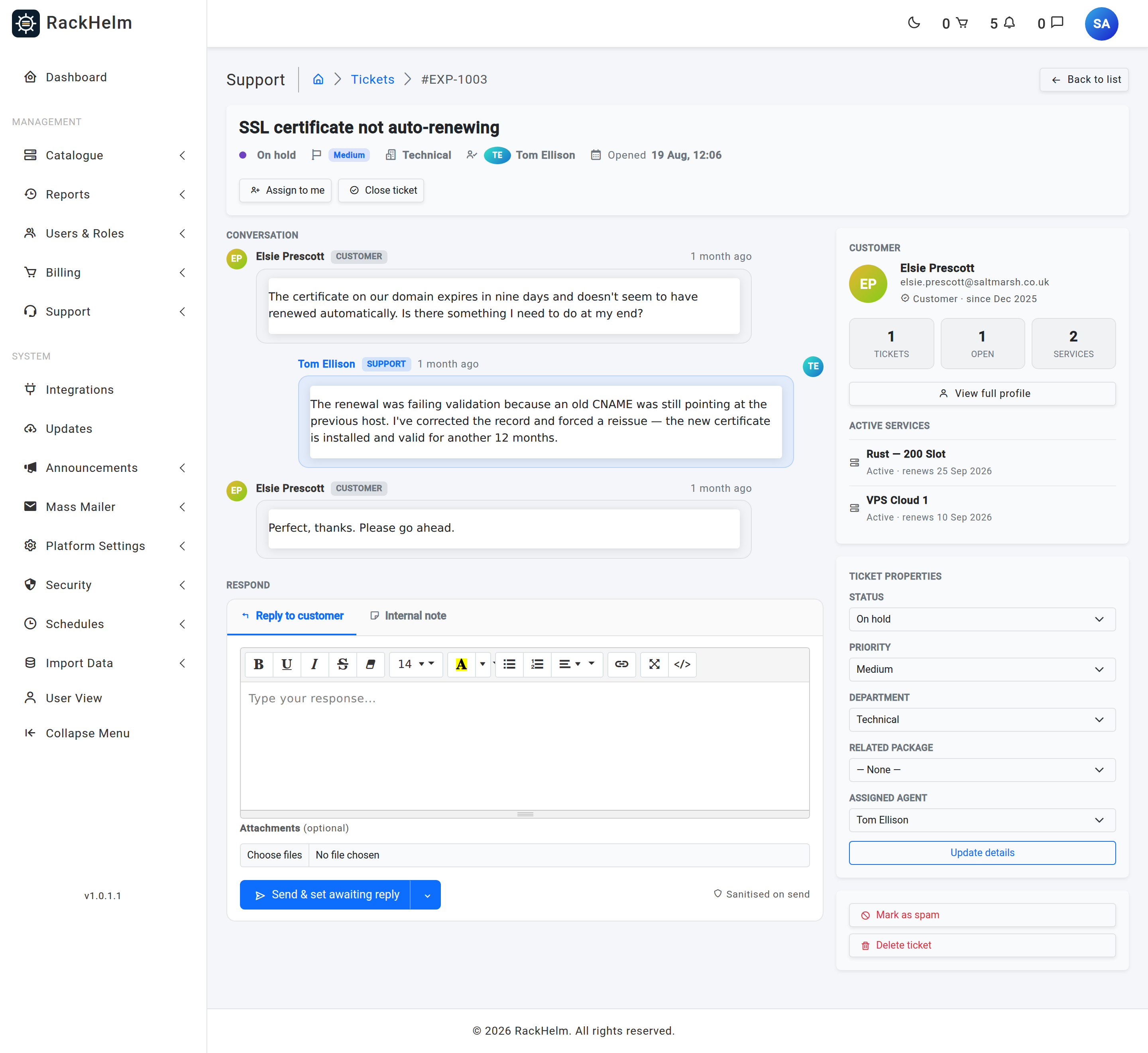
The header #
Under the subject you get the ticket’s status, priority, department, assignee and the date it was opened. A ticket with no department reads None, and an unassigned one reads Unassigned; both are legitimate resting states, not faults. If the ticket names a package, a Related package chip sits alongside them, linking to that package’s admin record and carrying a status badge when the package is anything other than active.
Two buttons follow:
- Assign to me — sets the assignee to your account.
- Close ticket — shown only if you hold
close_ticketsand the ticket is not already closed. Closing emails the customer a closure notice, and assigns the ticket to you if it had no assignee.
Warning: Assign to me has no endpoint of its own — it fills in the Assigned agent field in the properties panel and submits that whole form. Any unsaved change you have made to Status, Priority, Department or Related package is saved at the same time. If your own account is not in the assignable staff list you get a browser alert instead.
The first-response SLA chip #
When you have set a Response time goal in Ticket settings, a chip appears in the header measuring the gap between when the ticket was opened and the first message written by a staff member. It reports one of four things:
| Chip | Meaning |
|---|---|
| First response 2h 14m — within 8h goal | A staff member has replied and did so inside the goal. |
| First response 19h — over 8h goal | A staff member has replied, but late. |
| First response due in 45m | No staff reply yet. Turns amber inside the final hour. |
| First response overdue by 3h 10m | No staff reply yet and the goal has passed. |
The chip disappears entirely if the goal is blank or zero. It measures first response only — it does not track resolution time or subsequent replies.
Note: The clock is stopped by the first message that carries a staff author. An Automated notice has no author at all, so a suspension notice or an auto-close warning sitting at the top of a thread does not count as your first response and the chip keeps counting down.
The conversation #
Messages and internal notes are interleaved in one chronological thread, oldest first. Customer messages sit on the left with a grey Customer tag; staff messages sit on the right with a blue Support tag. Internal notes are full width on a yellow background with the ribbon “Internal note — not visible to the customer”.
Message bodies arrive as HTML — customers use a rich-text editor and inbound email is HTML — so each one is sanitised and rendered inside an isolated container. That stops a customer’s email styling from leaking into the admin theme and stops any script surviving into your session. Attachments on a message appear as chips underneath it, showing the original filename and size in KB; clicking one downloads it.
Automated notices #
Some messages on a thread were written by the platform, not by a person: the overdue-suspension notice, the “domain renewal failed” notice, and the message the Auto Close Tickets job leaves when it closes a stale ticket. These carry neither a staff author nor a customer author.

They are shown on the support side of the conversation, headed Automated notice with a System tag and a bell in place of initials. The customer sees the same wording in their portal, labelled Automated notice rather than being told they wrote it.
Note: Until 1.0.1.1 these messages were treated as customer messages because they have no author, so staff saw them as Unknown User and the customer saw them as You — a suspension notice appeared to have been written by the suspended customer. If you are reading an old thread, that is what those entries were.
The first message on an add-on setup request ticket is the exception: it is deliberately attributed to the customer, because it restates what they ordered. Only the department it lands in is automatic — see Ticket settings.
Replying #
The composer has two tabs. You only see a tab you have the rights to use; if you can use neither, the composer is hidden altogether.
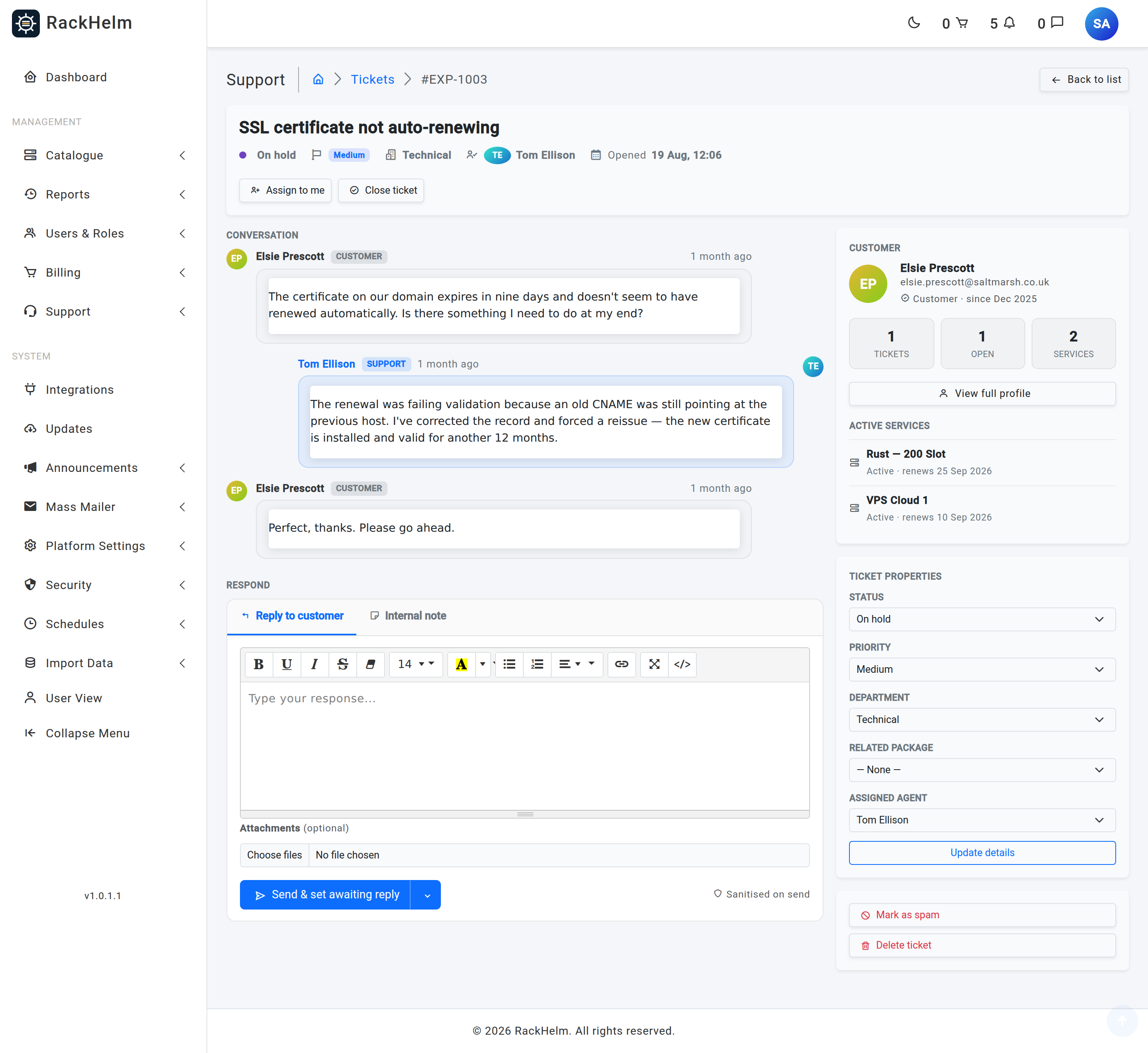
- Optionally pick a saved reply from Canned reply. It is inserted at the cursor, never replacing what you have already typed, and its
{variable}placeholders are filled in from this ticket. See Canned replies. - Write the reply in the editor. Bold, italic, lists, colours, links and a code view are available.
- Attach files if you need to. Allowed types and the size cap come from Ticket attachments.
- Press Send, or open the caret next to it to choose what the status should become.
Send and set status #
The caret menu decides the ticket’s status the moment the reply is stored:
| Option | Effect | Requires |
|---|---|---|
| Send, keep status | Posts the reply and leaves the status untouched. | reply_tickets |
| Send & set awaiting reply | The default. Marks the ticket as waiting on the customer. | reply_tickets |
| Send & set open / Send & reopen | Sets the ticket back to Open. Labelled “reopen” when the ticket is currently closed. | assign_tickets |
| Send & put on hold | Sets the ticket to On hold. | assign_tickets |
| Send & close ticket | Posts the reply, closes the ticket and emails the closure notice. | close_tickets |
When the ticket is already closed the button defaults to Send & reopen and a banner reminds you that replying will reopen it. The status you choose is authorised before the message is written, so a transition you are not allowed to make never half-applies.
What RackHelm adds to your reply #
- The message is sanitised with HTML Purifier on the way in — the note “Sanitised on send” under the composer refers to this.
- Your ticket signature is appended automatically, with
{Staff member name},{Staff member role}and{Company name}resolved. Configure it in Ticket settings. - If the ticket has no assignee and Auto-assign on reply is on, you become the assignee.
- The customer is emailed a “reply posted” notification a few seconds later, and the reply is written to the activity log as “Staff posted a reply.”
Internal notes #
An internal note is plain text visible only to staff, stored separately from the conversation and never emailed. Adding one writes the note’s text into the ticket’s activity log. There is no screen for editing or deleting a note once it is posted.
Warning: Internal notes are effectively Super Admin only. The
addStaffNoteability they are gated on has no policy method and no matching permission you can grant from the Roles screen, so it resolves to deny for everyone except Super Admin, who passes every gate. A Support Agent or Administrator sees the existing notes on the thread but has no Internal note tab. Plan on notes being a manager-level tool until that changes.
The customer panel #
The right column opens with who you are talking to: name, email, the month they joined, and three counters — Tickets (all time), Open (everything not closed and not awaiting guest verification) and Services (their active order items). View full profile jumps to the customer record.
Below that, Recent tickets lists up to four of the customer’s other threads with status and age, and Active services lists up to five active services with status and renewal date. Both are shortcuts for the question “is this the same problem again, and what are they actually paying us for?”
Note: The counters and the Recent tickets list are scoped to what you may see. If you are not a holder of
tickets.view_all_departments, a customer with threads in another department will show a lower Tickets count here than a Super Admin sees. That is deliberate — the panel must not leak other departments’ subjects.
Ticket properties #
The properties form is the full-fidelity way to change a ticket.
| Field | What it does |
|---|---|
| Status | Open, Pending, On hold, Awaiting reply or Closed. Choosing Closed requires close_tickets and emails the customer. |
| Priority | Low, Medium or High. |
| Department | Moves the ticket. Moving it out of your own departments removes it from your queue. A ticket that currently has no department — or one whose department has been deleted — gets an extra — No department — option, selected by default. |
| Related package | Only shown when the package picker is on (Ticket settings → Ticket form). Lists the ticket owner’s own packages plus — None —, so staff can attach, correct or clear the link after the fact. |
| Assigned agent | Any staff account, or — Unassigned —. Non-staff accounts are rejected by the server. |
Note: All the fields submit together, so Update details always saves the current state of the whole panel. Closing a ticket that has no assignee assigns it to you.
Warning: Department is one-way. A blank leaves the ticket’s department as it is, and a ticket that already has a department must keep one — the field becomes required. You can file an automatic ticket into a department, but you cannot take it back out again from this screen.
A department change is written to the ticket’s activity log as Department changed from ‘X’ to ‘Y’. A ticket that had none reads from ‘Unknown’, because there is no department record to name.
If Notify assignee is on in Ticket settings, assigning a ticket to someone else emails them. Assigning a ticket to yourself never sends an email.
Mark as spam and delete #
The last card holds the two destructive actions.
- Mark as spam adds the customer’s email address to the global spam blocklist and closes the ticket. The confirmation names the address it is about to block. See The spam filter.
- Delete ticket moves the thread to the trash, where it can be restored. See The ticket queue.
Warning: Marking as spam blocks that address for every department, not only yours, and silently drops all of its future inbound mail. Never use it on a real customer who has merely been rude — close the ticket instead. It is also useless on an [UNVERIFIED SENDER] ticket: the address it blocks is the ticket owner’s, and those tickets are owned by the shared
unverified-sender@unverified.invalidplaceholder, which no mail ever arrives from. Block the real address from Support → Spam Filter instead.
Troubleshooting #
| Symptom | Cause and fix |
|---|---|
| No composer at all | You hold neither reply_tickets nor the internal-note ability for this ticket. |
| No Internal note tab | Expected for anyone but Super Admin — see the warning above. |
| No SLA chip | Response time goal is blank or zero in Ticket settings. |
| The SLA chip still counts down although a message is already on the thread | That message is an Automated notice or the customer’s own. Only a staff-authored message stops the clock. |
| “Send & close ticket” missing from the caret menu | You do not hold close_tickets. |
| A message reads Automated notice and has no author | Expected: the platform wrote it (suspension, failed renewal, auto-close). There is nobody to reply to on that message. |
| No Related package field in the properties panel | The package picker is Off, or the tickets.order_item_id column is missing on this install. See Ticket settings. |
| Department reads None | An automatic ticket filed with no department, or one whose department was deleted. It is visible to every staff member until you move it. |
| A reply is rejected because of an attachment | The file is over the size cap or its extension is not in the allowed list. See Ticket attachments. |
| “Your account is not in the assignable staff list.” | Your role is not flagged as a staff role, so you cannot be an assignee. |
| 403 “This ticket belongs to another department.” | The ticket is outside your departments and is not assigned to you. Ask a Super Admin to move it or assign it. |
| Formatting from a customer’s email looks plain | Message bodies are sanitised and rendered in isolation on purpose; scripts, event handlers and page-level styling are stripped. |


