Every charge a customer sees in RackHelm is an invoice. This article explains how an invoice is put together, how it is numbered, which statuses it can hold, how the admin invoice list filters and its bulk actions behave, what deleting an invoice actually does, where the PDF comes from, and how the scheduled job that raises renewal invoices decides what to bill and when. It is written for operators and staff.
Before you start #
- Viewing invoices requires the
view_invoicespermission. The bulk actions on the list requireedit_invoicesat the route, and three of them are separately authorised on every selected invoice before anything happens: Mark as Paid needsmark_invoices_paid, Send Reminder needssend_invoice_remindersand Delete Invoices needsdelete_invoices. A bulk request that includes one invoice the user may not act on is refused as a whole, with nothing applied. See also Recording payments, refunds and marking paid. - Invoice generation, automatic charging, reminders and late fees are all scheduled jobs. Editing them requires the
manage_schedulespermission, and they are all seeded disabled — nothing bills until you enable them. - A queue worker must be consuming the
invoicesandpaymentsqueues, or generated invoices and payment attempts will sit unprocessed.
The invoice and entry model #
An invoice is a header record plus one or more line items (“entries”):
| Record | What it holds |
|---|---|
invoices |
The customer (user_id), an optional order_id, the number, subtotal, discount_amount, amount (the figure actually due), due_date, status, paid_at, a snapshot of the billing_address, a template_key (stored, but the PDF render always uses the current global template setting), the pdf_path, a free-form meta blob, and — once the multi-currency schema is in place — currency_code, exchange_rate, tax_total, tax_breakdown, tax_inclusive and customer_vat_number. deleted_at records a soft delete. |
invoice_entries |
One row per line: type (product, addon, custom or late_fee), a description snapshot, quantity, unit_price, setup_fee, a cached total, a taxable flag, and an optional link back to the order_item_id it bills. |
A line’s total is always (unit_price + setup_fee) × quantity. The invoice subtotal is the sum of its lines, and amount is subtotal − discount_amount, plus tax when the tax engine is on and prices are tax-exclusive, floored at zero. With tax-inclusive pricing the tax already sits inside subtotal and is not added again; on an install with the tax engine off, tax_total is zero and the sum reduces to subtotal − discount. When account credit part-funds an invoice, amount is reduced directly, which is why the screens show a derived “Credit Applied” figure of subtotal − discount + exclusive tax − amount rather than storing it.
An invoice is frozen in its own currency and its own tax rates at the moment it is raised. Changing the store’s currencies, exchange rates or tax rules afterwards never re-prices an issued invoice; the one exception is changing the billing address on an unpaid invoice, which is a re-quote and moves the tax (and therefore the amount) by the difference.
Warning:
amountis the authoritative figure. It is what the PDF states, what the payment button charges, and what settlement reconciles against. Do not edit line items on a paid invoice expecting the total to follow — paid invoices are deliberately locked for billing-address changes for the same reason.
Merged invoices #
If Merge Same-Day Invoices is enabled in Billing → Settings, several orders belonging to the same customer and falling due on the same date are billed on one invoice. A merged invoice has order_id set to NULL and reaches its orders through its entries instead. That is why the code paths that settle an invoice resolve orders through the entries — a merged invoice has no single parent order.
Two things about merging changed in 1.0.1.1. The switch is now actually consulted: with it off, each order is billed on its own invoice and keeps its order_id. And orders priced in different currencies are never merged, whatever the switch says — the merge group is customer, due date and currency, because an invoice can carry only one currency and a mixed group used to sum pounds and dollars under whichever currency the first order happened to use.
Note: An install that has never saved Billing → Settings has no stored value for this switch, and a missing value means merge — that is what every install did before the switch worked. Save that page once if you want merging off.
Invoice numbering #
Invoice numbers follow a template you set under Billing → Settings → Invoice Numbers, in the Number Format field. The default is INV-{order_number}-{date}, giving numbers like INV-1463-20260923. Every path that creates an invoice — checkout, the scheduled renewal run, a staff-created custom invoice, an upgrade or downgrade difference — uses the same template, so there is no longer one shape per code path.
| Placeholder | Shows |
|---|---|
{order_number} |
Order number. A merged invoice uses the lowest order number on it. |
{date} |
Date the invoice is created (YYYYMMDD). |
{year} |
Year the invoice is created (YYYY). |
{month} |
Month the invoice is created (MM). |
{day} |
Day of the month the invoice is created (DD). |
{due_date} |
Date the invoice is due (YYYYMMDD). |
A template alone cannot guarantee uniqueness: one order can be invoiced twice in a day (a renewal voided and re-issued, or an upgrade raised on the day of the order), and a merged invoice carries one order number for several orders. So the template gives the base number and a clash takes the next free suffix — INV-1463-20260923, then INV-1463-20260923-2, then -3. The suffix always goes past the highest one already issued rather than filling a gap, so a deleted invoice’s number is never handed to a different invoice.
The number column carries a unique index, and that index remains the only source of truth. If two billing workers insert at the same instant, the loser of the race catches the constraint violation and retries with the next suffix, up to 25 attempts. Soft-deleted invoices still hold their numbers in that index, so a number is never reused after a delete.
Note: Invoices created before 1.0.1.1 keep the numbers they were given, including the old
INV-{due date}-{random 3 digits}shape from the renewal and manual-invoice paths. Changing the format only affects new invoices; existing invoice numbers never change.
What the template may contain, and what happens when it does not, is covered in Billing settings. A template that is blank or that fails validation is not applied — RackHelm falls back to INV-{order_number}-{date} rather than minting numbers nobody chose.
Statuses #
| Status | Meaning |
|---|---|
pending |
Raised and awaiting payment. This is the only status the automatic charge run looks at. |
unpaid |
Written by the bank-transfer branch of the payment run, so no automatic pull is possible and the customer must pay manually. |
paid |
Settled. paid_at is stamped, the due dates on every order the invoice covers are advanced, any registrar renewals are queued, any package change scheduled for this renewal is applied, and services suspended for non-payment are reactivated. |
void |
Cancelled. For a renewing order a void invoice bills nothing, so the generation run raises the renewal again; for a one-off order voiding the charge cancels it, and it still counts as billed. |
Those four are the statuses RackHelm’s own billing paths write. You may also see refunded, cancelled, draft or open on invoices brought in by the WHMCS, Blesta or ClientExec importers, which map their source systems’ statuses onto these strings.
Warning: An invoice in
unpaidstatus is not picked up by the automatic charge run, which filters onpendingalone. Bank-transfer invoices are never collected for you. Reminders and late fees do now cover bothpendingandunpaid, so a bank-transfer customer is chased and can accrue a late fee, but someone still has to record the payment by hand.
Note: The Open filter on the invoice list means
pendingorunpaid. An imported invoice whose status is the literal stringopenis not in that set, and is only reachable under All. If you have imported invoices that never show up under Open, that is why.
Invoices frozen by a payment in flight #
If a card payment on an invoice is still being confirmed — a 3-D Secure step, a review hold, or an outcome the gateway has not reported — the invoice is frozen. Mark as Paid, Mark as Pending, Mark as Void, Process Invoices, Void & Regenerate from Order and Delete Invoices all skip it and report it back:
A card payment on these invoices is still being confirmed, so they were left unchanged: #INV-1463-20260923. Resolve the payment attempt on the invoice first.Resolve the attempt under Billing → Payment Attempts first; the freeze exists so that nothing is charged, voided or deleted twice around an outcome nobody has confirmed yet.
The admin invoice list #
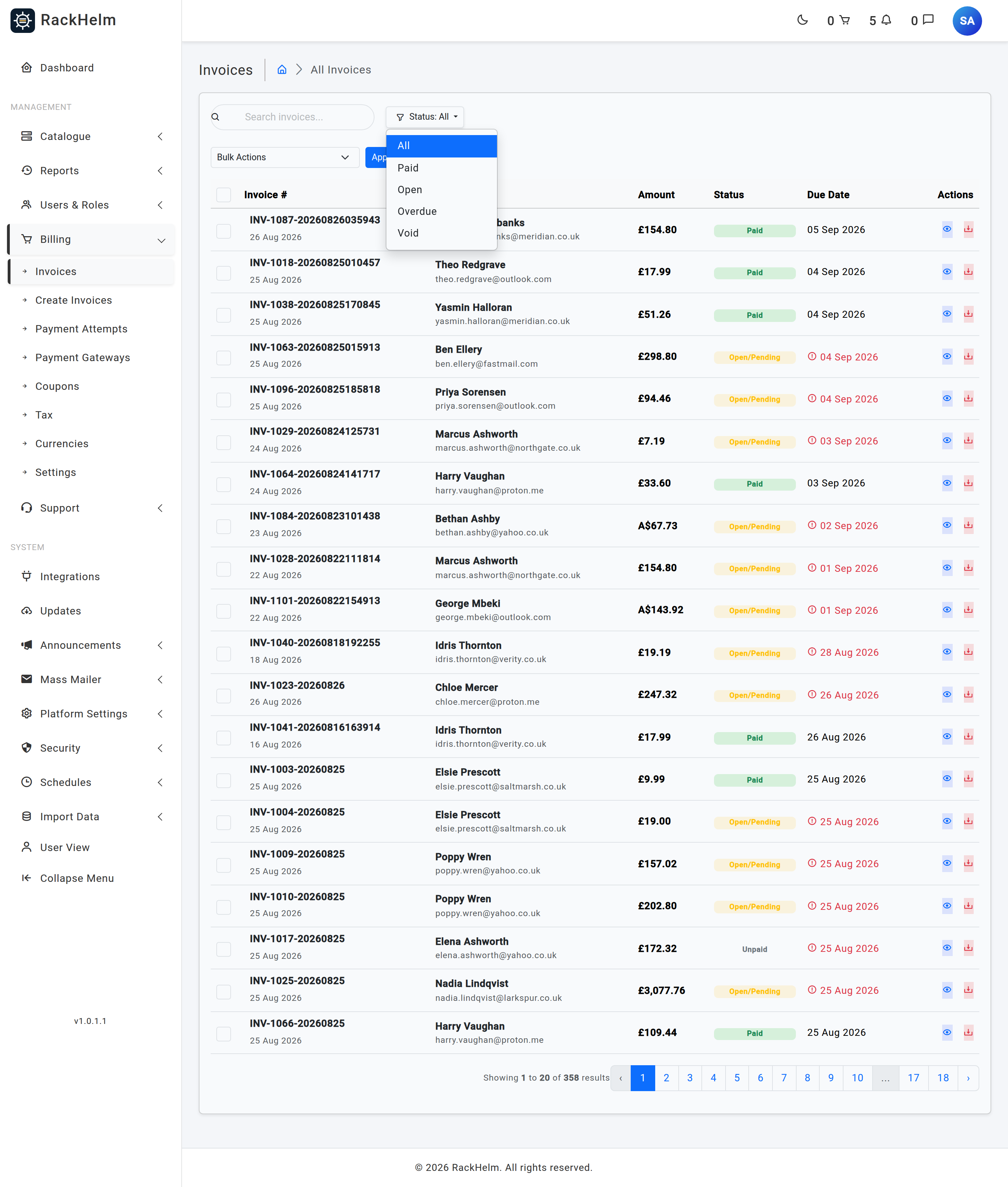
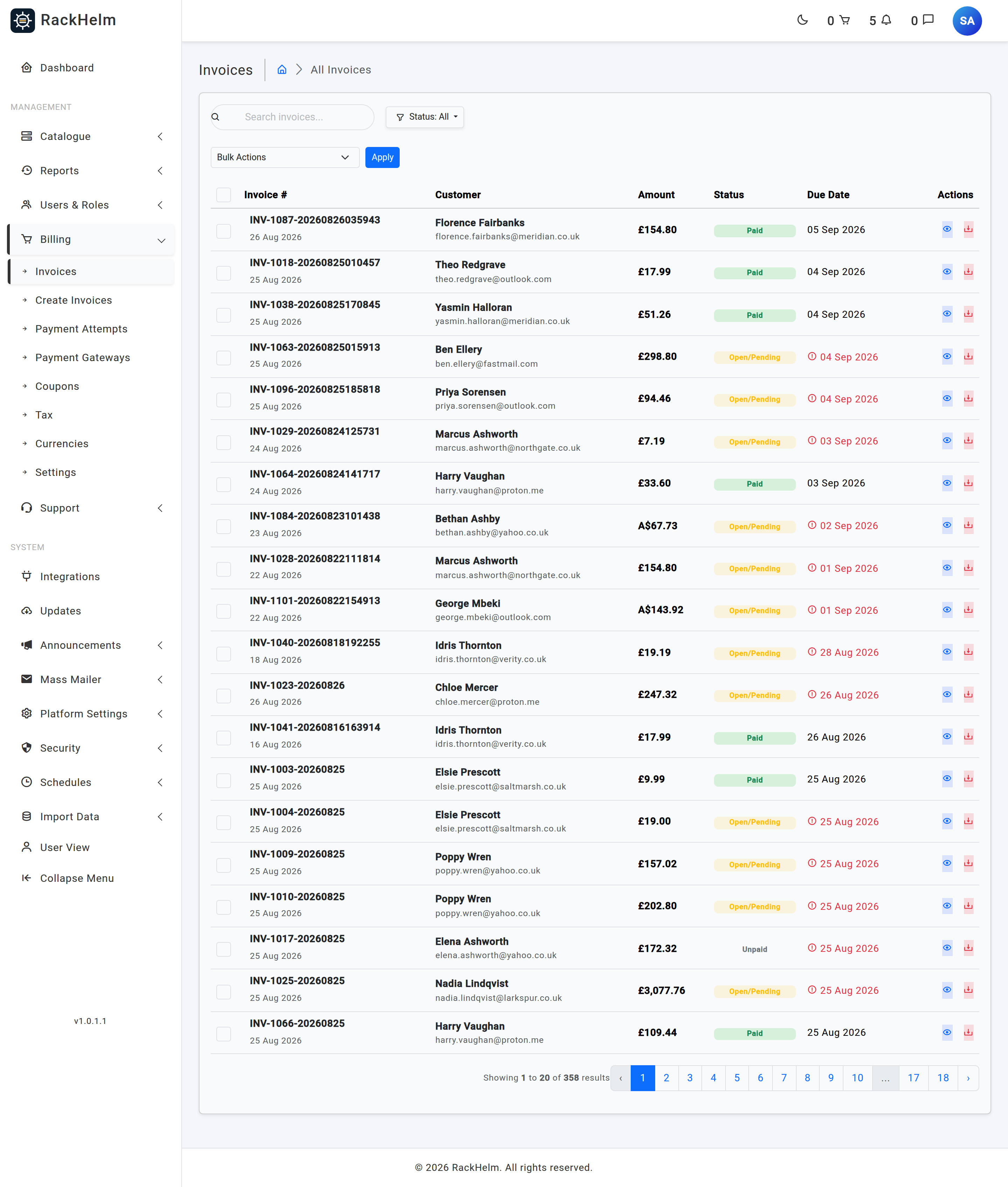
The list at Billing → Invoices has a Status menu offering All, Paid, Open, Overdue, Draft, Void, Cancelled, Refunded and Deleted. A filter is only offered while it would list at least one invoice — All always is — so on a healthy install the menu is short, and a filter appearing is itself information. Overdue means still owed and due before today, counted the same way the dashboard counts Overdue A/R.
The search box matches the invoice number, or the customer’s first name, last name, email or organisation. Every word you type must match one of those fields, so “Jane Smith” and “Smith Jane” both find her. The filter and the search are kept together: a filter link keeps the search, and the search form keeps the filter.
Bulk actions #
| Action | What it does, and what it refuses |
|---|---|
| Mark as Paid | Settles the invoice properly: stamps paid_at, advances the order due dates and queues any registrar renewal, then emails the customer a receipt. A repeat click on an already-paid invoice sends no second receipt. |
| Mark as Pending | Reopens the invoice. Refused when the same services for the same date are already billed on another invoice, with a warning naming it — reopening would ask for the term twice and the payment run would charge both. |
| Mark as Void | Opens a confirm step. Under If it bills a renewal, choose Bill the renewal again (the next invoice run raises a new invoice for the same due date) or Waive the renewal (the service moves on to its next due date and the term is never billed; domain renewals cannot be waived). Return account credit to the customer is ticked by default; a renewal billed again always returns the credit whatever the tickbox says. |
| Process Invoices | Queues one automatic payment attempt per invoice. Pending and unpaid invoices only. Anything else is skipped and named: Only pending or unpaid invoices can be processed, so these were left unchanged: … |
| Regenerate PDF | Queues a PDF rebuild for the selected invoices using the currently saved template. |
| Send Reminder | Queues the reminder email immediately, at offset 0. |
| Void & Regenerate from Order | Voids the invoice and rebuilds it from its order — or, for a merged invoice, from every order it bills that is still due on its date. Pending and unpaid only. Setup fees and first-term prices consumed by the voided invoice are handed back before the replacement is built, and account credit is returned and then carried onto the replacement rather than paid twice. |
| Delete Invoices | A soft delete. See below. |
Warning: Process Invoices used to reopen whatever was selected, which flipped a paid invoice to pending and charged the customer again. It now refuses anything that is not
pendingorunpaid. If you have a local runbook that says to select everything and hit Process, retire it.
Deleting an invoice #
Delete Invoices keeps the row and stamps deleted_at. The deleted invoice disappears from every other status filter and from every query the rest of the application makes, and is listed only under Status: Deleted, most recently deleted first. It still opens and still downloads its PDF, read-only, with a banner at the top of the page:
This invoice was deleted on 23 Sep 2026 14:02. It is kept for reference only: it is not charged, reminded or reported, and it is listed only under Status: Deleted.Under the Deleted filter there are no tickboxes and no bulk-action selector, and on a deleted invoice’s page there is no action form: nothing can be marked paid, voided, processed or regenerated. Its payment method and billing address can no longer be changed, and the customer’s own invoice pages no longer resolve it at all.
Warning: There is no undelete in the admin UI. A deleted invoice can be read but not restored, and its number stays reserved forever — the clash-suffix search reads the table directly, so a replacement invoice for the same order and day gets
-2rather than the freed number. Treat Delete as an archive action, and use Mark as Void when you mean “this charge does not apply”.
Note: Queued jobs re-read their invoice without the soft-delete filter, so a job queued before the delete can still reach a deleted invoice. The payment worker and the reminder worker both check for this and stop. Regenerate All Existing Invoices on the billing settings screen skips deleted invoices entirely, so their stored PDFs keep whatever template they were built with.
Changing how one invoice is paid #
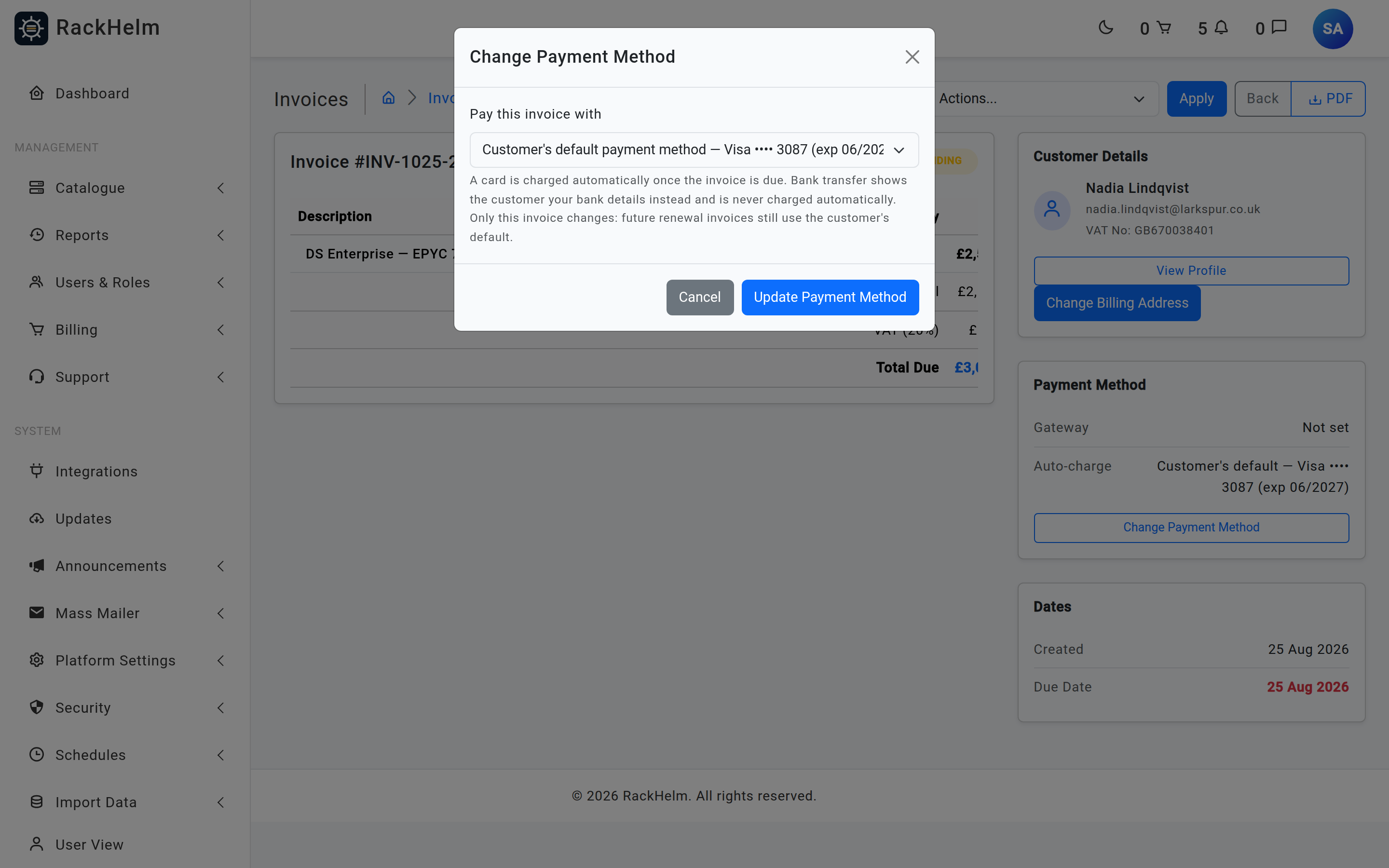
Every generated invoice starts out set to charge whatever the customer’s default payment method is when the invoice falls due. On an open invoice, the Payment Method card on the invoice page shows the Gateway and an Auto-charge line, with a Change Payment Method button. The modal’s Pay this invoice with list offers:
- Customer’s default payment method — named in the label, or “none on file”.
- Each of the customer’s saved cards, labelled like
Visa •••• 4242 (exp 04/27). An expired card is shown with “— expired” and cannot be selected. - Bank transfer (customer pays manually), when that gateway is enabled.
Only this invoice changes; future renewal invoices still follow the customer’s default. Both halves of the choice move together — what the customer is shown (bank details, or a Pay Now button) and what the automatic run actually charges — so a customer can never be shown bank details and have their card charged anyway. The PDF is rebuilt afterwards, because it prints the bank-transfer instructions.
The option is absent on a paid, refunded, cancelled or void invoice, on a deleted one, and on an invoice with no customer. Posting to it anyway is refused with This invoice is paid, so its payment method can no longer be changed. A choice that is not offered — another customer’s card, an expired card, a card on a disabled gateway — cannot be posted either.
Note: Switching an
unpaidinvoice onto a card does not make the automatic run collect it: that run only chargespendinginvoices. The success message says so, and the invoice page adds “Awaiting manual payment, so it won’t be charged automatically.” The customer can now pay it online themselves, or you can use Process Invoices on it.
PDF generation #
PDFs are rendered server-side with dompdf from a Blade template and written to the private disk at storage/app/private/invoices/{number}.pdf. The template is chosen by the PDF Template setting on Billing → Settings; if the stored template name does not resolve to a view, RackHelm falls back to default and logs a warning.
A PDF is re-rendered automatically whenever an invoice transitions to paid, its billing address changes, or its payment method is changed. You can also force a rebuild for one invoice with the Regenerate PDF action, or for the whole database with Regenerate All Existing Invoices on the billing settings screen.
The renewal generation schedule #
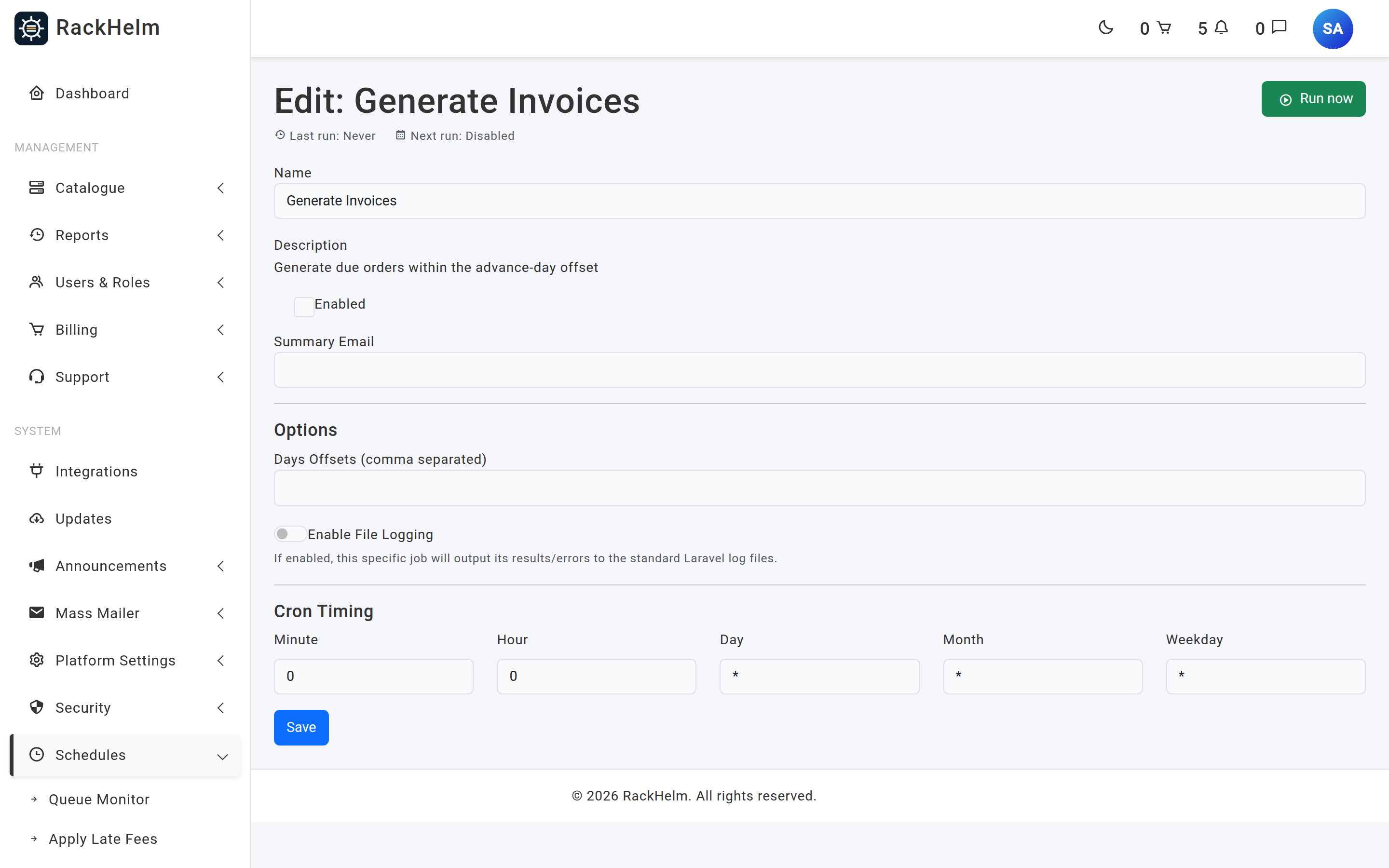
Renewal invoices are raised by the Generate Invoices schedule, which you edit at Schedules → Generate Invoices. It runs the following logic:
- Read the Days Offsets list configured on the schedule.
- Take the largest value in that list as the advance window — for example
14means “raise invoices up to 14 days before the due date”. - Walk every order that has a
due_dateon or before today plus that window. - Group by customer, due date and currency when Merge Same-Day Invoices is on, or one group per order when it is off. Skip any order item that already has an entry on an invoice for that same due date, and skip items that are cancelled, cancelling or pending cancellation. A void invoice does not count as having billed a renewing order — that is how a voided renewal comes back — but it does count for a one-off order, where voiding the charge cancelled it.
- Queue a generation job per group on the
invoicesqueue. A one-day cache lock per order and due date prevents a second run from duplicating the work; voiding a renewal to re-bill it releases that lock, so the replacement comes at the next run rather than the one after.
Warning — the empty Days Offsets trap. The Days Offsets (comma separated) field on the Generate Invoices schedule is seeded empty, and the schedule editor writes an empty list to the record the first time you save the form. An empty list is not the same as “unset”: the fallback default only applies when the key is absent, so an empty list collapses the advance window to 0 and renewal invoices are then only ever raised on the exact due date — leaving customers no time to pay before the service falls overdue. Set the field to
14,7,1,-1,-7,-14, which is the intended default, and re-check it after any save of that screen. This is still the behaviour in 1.0.1.1.
The same 14,7,1,-1,-7,-14 list is the built-in default carried in configuration (overridable with the INVOICE_SCHEDULE_DAYS environment variable), so restoring that exact value returns the schedule to shipped behaviour.
Previewing a run #
A dry run lists what the next generation run would group and bill:
php artisan test:invoice-schedule-dry-runIt groups orders exactly as the job does, and tells you whether merging is on. Read one limitation into the output: the preview only lists orders no item of which has ever been invoiced, while the job itself asks whether an item is invoiced for this due date. A service that has renewed even once never appears in the preview, however due it is.
The rest of the billing timetable #
Four further schedules complete the cycle. All are seeded disabled with a daily 0 0 * * * cron expression.
| Schedule | What it does |
|---|---|
| Process Due Invoices | Finds pending invoices due today or earlier and queues one automatic payment attempt each, on the payments queue. Invoices whose order has been deleted are skipped; so are invoices with a card payment still being confirmed. |
| Invoice Reminders | Emails reminders for pending and unpaid invoices whose due date matches each configured offset. Seeded with -1,1,7 — one day before due, one day overdue and seven days overdue. With no offsets configured it does nothing at all and says so in the log. |
| Apply Late Fees | Adds a late_fee line to pending and unpaid invoices still outstanding after the grace period, merged invoices included. See Billing settings for how the fee is resolved. |
| Suspend Overdue Services / Terminate Overdue Services | Suspend after 7 days overdue and terminate after 14 by default, both configurable through the schedule’s own Days field. |
Troubleshooting #
| Symptom | Cause and fix |
|---|---|
| No renewal invoices are being raised at all | The Generate Invoices schedule ships disabled. Turn on the Enabled switch, and confirm the server cron that drives Laravel’s scheduler is installed. |
| Invoices only appear on the exact due date | The empty Days Offsets trap above. Set it to 14,7,1,-1,-7,-14. |
| Invoices are created but customers are never charged | Process Due Invoices is disabled, or no queue worker is consuming the payments queue. If the invoices are unpaid rather than pending, they are bank-transfer invoices and are never charged automatically by design. |
| An order was skipped by the generation run | Its items already have an entry on an invoice for that due date, or the items are cancelled / pending cancellation. Use the Void & Regenerate from Order bulk action, which voids and rebuilds in one step and carries the credit across. |
| Two services for the same customer and date landed on separate invoices | They are priced in different currencies, which are never merged, or Merge Same-Day Invoices is off. Check the order currencies first. |
| An invoice has vanished from every filter | It was deleted. Switch the Status menu to Deleted. If Deleted is not offered, nothing has been deleted. |
| A bulk action reports invoices “left unchanged” | Read the warning: either the action only applies to pending and unpaid invoices, or a card payment on those invoices is still being confirmed. Resolve it under Billing → Payment Attempts. |
| Downloading a PDF returns “PDF file not found.” | The file is missing from storage/app/private/invoices/. Run the Regenerate PDF action on that invoice. |
| Every invoice renders with the plain default layout | The saved PDF Template name does not match a template view, so RackHelm fell back to default and logged a warning. Re-pick the template on Billing → Settings and regenerate. |
An invoice number ends in -2 or -3 |
Expected. The base number the template produced was already taken — the order was invoiced twice in one day, or a previous invoice for it was deleted and its number is still reserved. Nothing has gone wrong and no invoice is missing. |


