The billing settings screen holds the handful of options that apply to every invoice you raise: whether customers may top up their balance, which PDF layout is used, whether same-day charges are combined, how invoice numbers are built, the late-fee defaults and the default affiliate commission. This article covers every field on that screen, and which of them actually take effect. It is written for operators.
Before you start #
Note: The screen is at Billing → Settings (
/admin/company-settings/billing) and requires theedit_company_settingspermission. The sidebar link that leads to it is drawn against a permission key that is not seeded, so in a default install only a Super Admin sees the link — a staff member holdingedit_company_settingscan still reach the URL directly. See Roles & Permissions.
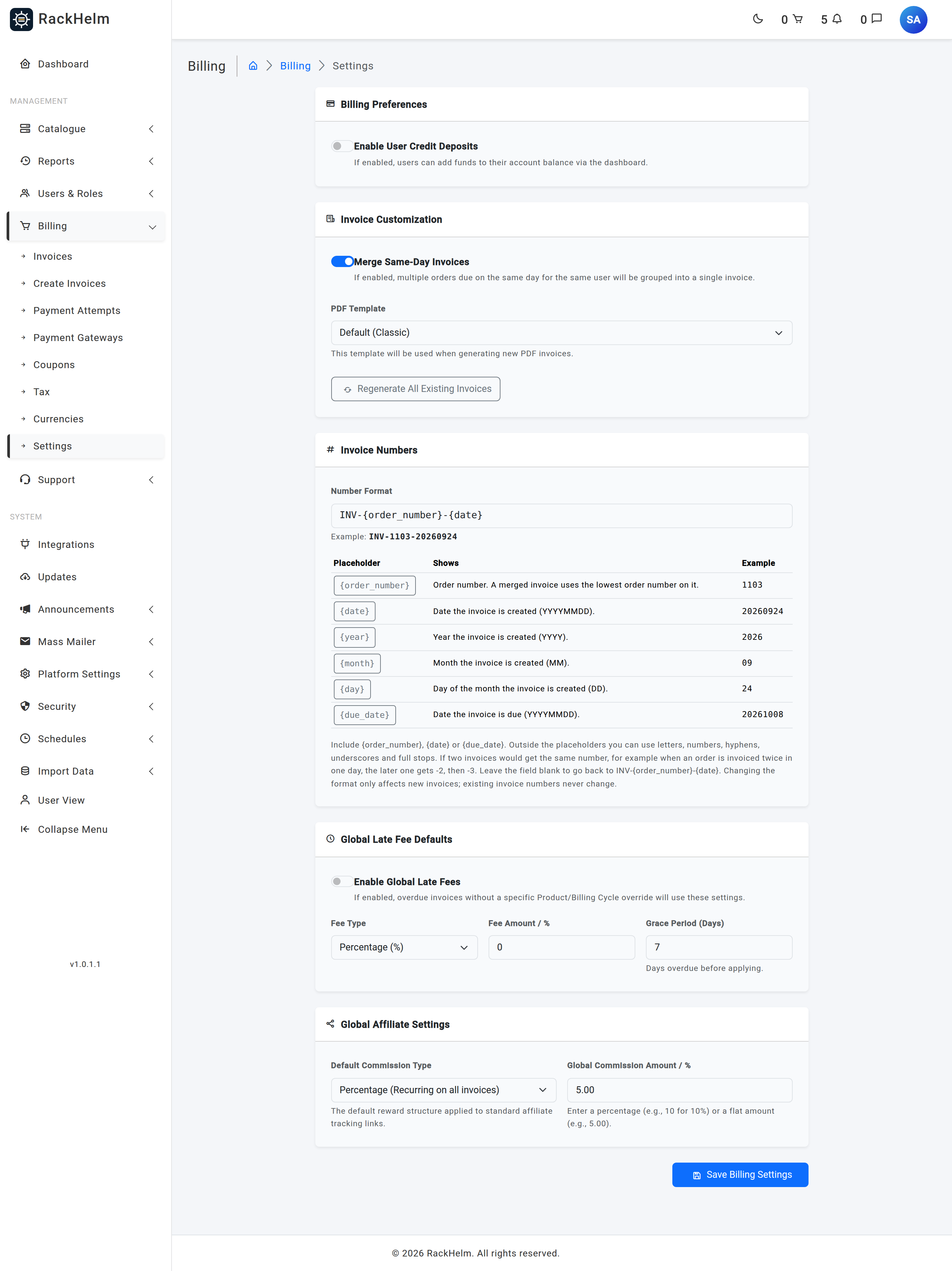
Billing Preferences #
| Field | What it does |
|---|---|
| Enable User Credit Deposits | Shows the Add Funds form on the customer’s Credit page and allows deposit requests. With it off, the form is hidden and a posted deposit is refused with a 403. Off by default. See Account credit. |
Invoice Customization #
| Field | What it does |
|---|---|
| Merge Same-Day Invoices | Combines several orders for the same customer falling due on the same date onto a single invoice. With it off, each order is billed on its own invoice. |
| PDF Template | The layout used when a new PDF is rendered. Seven are shipped — see the table below. Defaults to Default (Classic). |
| Regenerate All Existing Invoices | Queues a PDF rebuild for every invoice in the database using the currently saved template. A confirmation dialog appears first. |
The merge switch was read and then ignored for several releases, so every customer’s day was merged whatever you had saved. From 1.0.1.1 it is honoured. Two things are worth knowing about it:
- An install that has never saved this page has no stored value, and a missing value means merge — that is what those installs have always done. The box therefore shows ticked on a fresh install. Save the page once to record a deliberate choice.
- Orders priced in different currencies are never merged, whichever way the switch is set. An invoice can carry only one currency, and a mixed group used to sum pounds and dollars under whichever currency the first order happened to use. The merge group is customer, due date and currency.
Tip: Regenerate All Existing Invoices uses the saved template, not the one currently showing in the dropdown. Save the page first, then regenerate. On a large install this queues one job per invoice, so run it out of hours. Soft-deleted invoices are skipped, so their stored PDFs keep whatever template they were built with.
The shipped PDF templates #
| Option | Stored value |
|---|---|
| Default (Classic) | default |
| Modern (Purple) | modern |
| Minimal (Printer Friendly) | minimal |
| Corporate (Blue) | corporate |
| Bold (High Contrast) | bold |
| Clean (Stripe Style) | classic |
| Creative (Sidebar) | creative |
Each invoice also stores the template it was built with in its own template_key, but the render always uses the current global setting — so a regeneration moves an old invoice onto the new layout. If the saved value does not resolve to a template, RackHelm falls back to default and logs a warning.
Invoice Numbers #
This card decides what new invoice numbers look like. Before 1.0.1.1 the shape depended on which code path created the invoice, and the renewal and manual-invoice paths ended in a random three-digit suffix drawn from only 900 values against every invoice sharing a due date. Because invoices.number is unique, a clash threw inside the generation job and that customer went uninvoiced until the run’s day-long lock expired. There is now one template for every path.
| Field | What it does |
|---|---|
| Number Format | The template new invoice numbers are built from. Ships as INV-{order_number}-{date}, giving numbers like INV-1463-20260923. Maximum 64 characters. An example of what your template produces is shown live beneath the field as you type. |
Placeholders #
Each placeholder in the table on the card is a button: clicking it inserts that placeholder at the cursor.
| Placeholder | Shows |
|---|---|
{order_number} |
Order number. A merged invoice uses the lowest order number on it. |
{date} |
Date the invoice is created (YYYYMMDD). |
{year} |
Year the invoice is created (YYYY). |
{month} |
Month the invoice is created (MM). |
{day} |
Day of the month the invoice is created (DD). |
{due_date} |
Date the invoice is due (YYYYMMDD). |
The rules the form enforces #
The same checks run in the browser as you type and again on the server when you save, so a template the form refuses can never be applied. Each failure has its own message:
| Rule | What you see if you break it |
|---|---|
| At most 64 characters | The invoice number format must be 64 characters or fewer. |
| Only the six placeholders above | The invoice number format uses an unknown placeholder {invoice_id}. Available: {order_number} {date} {year} {month} {day} {due_date}. |
| Outside the placeholders, only letters, numbers, hyphens, underscores and full stops | Outside its placeholders, the invoice number format can only use letters, numbers, hyphens (-), underscores (_) and full stops (.). |
Must include at least one of {order_number}, {date} or {due_date} |
The invoice number format must include {order_number}, {date} or {due_date}, so each number says which order or day it belongs to. |
The character rule is not fussiness: the number becomes a file name (invoices/{number}.pdf, and Invoice-{number}.pdf on download), so spaces, slashes and anything else a file name or a Content-Disposition header could trip over are kept out. The anchor rule exists because a template with none of those three — INV-{year}{month}, say — gives every invoice in a month the same base, and the numbers become a long run of -2, -3, -4 suffixes.
Leave the field blank to go back to INV-{order_number}-{date}.
Clashes #
A template on its own cannot guarantee unique numbers. One order can be invoiced twice in a day — a renewal voided and re-issued, or an upgrade raised on the day of the order — and a merged invoice carries one order number for several orders. So the template gives the base number and a clash takes the next free suffix: INV-1463-20260923, then INV-1463-20260923-2, then -3. The unique index on the column stays the only source of truth; two billing workers inserting at the same instant are resolved by the loser retrying with the next suffix.
Note: Suffixes always go past the highest one already issued rather than filling a gap, and soft-deleted invoices still hold their numbers. A deleted invoice’s number is therefore never handed to a different invoice, and a replacement raised for the same order and day gets
-2rather than the freed number.
Warning: Changing the format only affects invoices raised from that point on. Existing invoice numbers never change, and neither do the file names of PDFs already rendered. If you switch format mid-year, expect two number shapes in your accounts for that year — decide on the format before you go live, not after.
Global Late Fee Defaults #
| Field | What it does | Rules |
|---|---|---|
| Enable Global Late Fees | Intended as the fallback rule for overdue invoices with no product or billing-cycle override. | Off by default. |
| Fee Type | Percentage (%) charges a percentage of the invoice’s own subtotal; Flat Amount charges a fixed sum. The label carries your base currency’s symbol. | Must be percentage or flat. Defaults to percentage. |
| Fee Amount / % | The percentage, or the flat figure. Flat fees are configured in your base currency and converted into the invoice’s currency when the fee is added. | Numeric, zero or greater. Defaults to 0. |
| Grace Period (Days) | How many days past the due date an invoice must be before the fee is added. | Whole number, zero or greater. Defaults to 7. |
Warning: These four global fields are saved, but the Apply Late Fees job does not read them — it looks for late-fee configuration keys that the shipped configuration file does not define, so the global fallback evaluates as “disabled” on every invoice. This is still true in 1.0.1.1. Late fees only fire where a specific override exists. Configure them per product instead.
Where late fees actually work #
The job resolves a rule per invoice by walking its order items and taking the first match:
- Billing cycle price override (highest priority) — on the product editor’s billing-cycle table, tick Custom in the Late Fee column against a cycle to expose Fee Type, Fee Amount and Grace Period (Days) for that cycle.
- Product baseline — the Baseline Late Fee (Flat Amount) and Late Fee Grace Period (Days) fields on the product’s Pricing tab. A product baseline is always treated as a flat fee.
When a rule matches and the invoice is at least the grace period overdue, a line of type late_fee is appended. The job refuses to add a second one to the same invoice, so it is safe to run daily. It evaluates pending and unpaid invoices alike, so bank-transfer invoices accrue fees too, and it resolves items across both invoice shapes — a merged invoice used to be skipped entirely, which meant the normal invoice for a customer with several services never accrued a fee at all.
Note: Whether a late fee is taxed is a separate switch, Apply tax to late fees, on Billing → Tax. It is off by default, so late fees are added without tax until you turn it on.
Global Affiliate Settings #
These two fields were moved onto this screen from a retired affiliates page; the old URL now redirects here.
| Field | Options |
|---|---|
| Default Commission Type | Percentage (Recurring on all invoices) (percent_recurring, the default), Percentage (One-time on first invoice) (percent_once), Flat Rate (One-time amount) (flat). |
| Global Commission Amount / % | A percentage (enter 10 for 10%) or a flat figure in your base currency. Required by the form; numeric and zero or greater. Ships as 5.00. |
Warning: These defaults are saved and read correctly, but almost nothing reaches the code that reads them. A commission is only awarded by a listener on an internal “payment received” event, and that event is fired from exactly one payment path: the older on-page order payment at
/orders/{order}/payment. Payments taken through the normal checkout, through Pay Now on an invoice, or by the automatic renewal run never fire it, so no commission is recorded for them. Do not promise affiliates recurring commission on renewals on a 1.0.1.1 install; reconcile their earnings by hand until this is fixed.
Settings that affect billing but live elsewhere #
| Setting | Where |
|---|---|
| Company name, address, email, VAT number and company number printed on the invoice | Platform Settings → General & System. See Tax, VAT and currency. |
| Whether tax is charged at all, tax-inclusive or tax-exclusive pricing, reverse charge, and whether late fees are taxed | Billing → Tax. See Tax, VAT and currency. |
| Which currencies customers may buy in, and the exchange rates invoices are stamped with | Billing → Currencies. |
| When renewal invoices are raised, when cards are charged, when reminders go out, when late fees apply | Schedules. See How invoicing works. |
| Which gateways customers can pay with, what customers see each one called, and test versus live mode | Billing → Payment Gateways. See Payment gateways. |
| Whether new customers are asked for a card during onboarding, and which gateway that step defaults to | Platform Settings → User Onboarding (/admin/company-settings/onboarding). |
Troubleshooting #
| Symptom | Cause and fix |
|---|---|
| Late fees are never applied | The global defaults on this screen are inert. Set a late fee on the product, or on a specific billing-cycle price, and make sure the Apply Late Fees schedule is enabled. |
| Renewal invoices still combine several services even though merging is off | Check you are on 1.0.1.1 or later — before that the switch did nothing. If you are, and the invoice is genuinely recent, confirm the page has been saved at least once: an install that has never saved it has no stored value, and a missing value means merge. |
| Two services for the same customer and date were not merged | Their orders are priced in different currencies. That split is deliberate and cannot be turned off. |
| The form refuses to save the invoice number format | Read the message under the field: an unknown placeholder, a character that is not allowed outside placeholders, over 64 characters, or no {order_number}, {date} or {due_date}. The same check runs in the browser, so the example under the field turns red before you submit. |
New invoice numbers keep ending in -2 or -3 |
Your template gives too many invoices the same base. Add {order_number}, or {date} if you had only year and month. |
| Old invoices still have the old number style | Expected. Changing the format only affects new invoices; existing numbers and their PDF file names never change. |
| Changing the PDF template does not change existing invoices | Only newly rendered PDFs pick up the template. Save the page, then use Regenerate All Existing Invoices, or Regenerate PDF on a single invoice. |
| Regeneration appears to do nothing | It queues one job per invoice. Confirm a queue worker is running; the jobs log progress per invoice to the application log. |
| The customer’s Credit page has no Add Funds form | Enable User Credit Deposits is off, or the required Credit Deposit catalogue product is missing. See Account credit. |
| A switch you turned on is off again after saving | Every card saves as one form, and any switch the posted form does not carry is written as off. Saving from a stale page — one left open while someone else changed a setting, or a cached copy — therefore turns things off silently. Reload the page before editing, and check the switches after every save. |


