All Users is the operator’s single list of everyone with an account — staff, customers, guests and sub-accounts. From here you filter the list down to the account you want and open its profile workspace, where every tab is a different view of that one customer.
Before you start #
Note: The list requires the
view_clientspermission. Individual tabs need more:view_credit_balancesfor Billing,view_ticketsfor Tickets,view_client_activityfor Auth Logs andview_seo_reportsfor SEO Reports. See Roles and Permissions.
Finding an account #
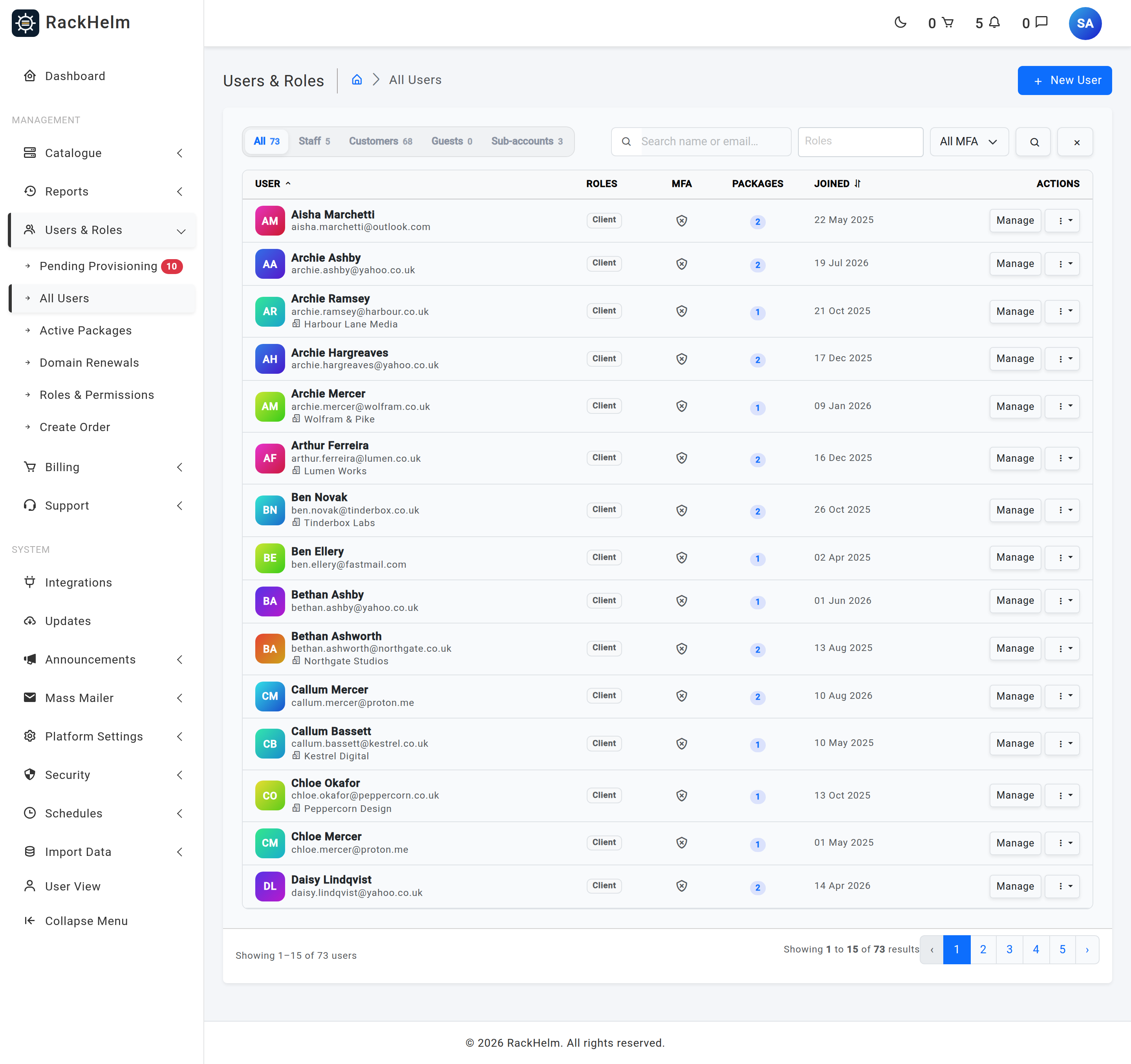
Open Users & Roles → All Users. The toolbar across the top of the table gives you four independent ways to narrow the list, and they combine.
Segment pills #
The pills on the left switch the list between five populations. The number on each pill is the total for that segment and ignores whatever else you have typed or selected, so it stays stable as a reference figure.
| Pill | Shows |
|---|---|
| All | Everyone except guests. This is the default. |
| Staff | Accounts holding at least one role marked as a staff role. |
| Customers | Non-guest accounts with no staff role — your paying client base. |
| Guests | Placeholder accounts created from guest tickets and inbound support email. This is the only pill that shows them — All excludes them too. |
| Sub-accounts | Accounts attached to a parent account. |
Search and filters #
- Search name or email matches first name, last name, the two joined as a full name, the email address, and the name of the parent account. Searching for a company owner therefore also surfaces their colleagues’ sub-accounts.
- The Roles box is a multi-select; picking several roles returns anyone holding any of them.
- The MFA filter offers All MFA, MFA on and MFA off, based on whether the account has a two-factor secret stored.
- The × button beside the search icon clears every filter and returns to the default view.
The User and Joined column headings are sort links; clicking the same heading twice reverses the direction. The list pages at 15 rows and your filters survive paging.
Reading a row #
Each row shows the account’s initials tile, name, email, organisation if one is recorded, and — for a sub-account — a “Sub of” line linking straight to the parent. Role badges are tinted when the role is a staff role. The MFA column shows a shield, the Packages column counts the account’s top-level services (add-ons are not counted separately), and Joined is the registration date.
Manage opens the profile workspace. The kebab menu beside it holds Impersonate and Delete user, each shown only when it is actually available to you: delete is hidden for Super Admins, for any staff account, and for your own account.
The client workspace #
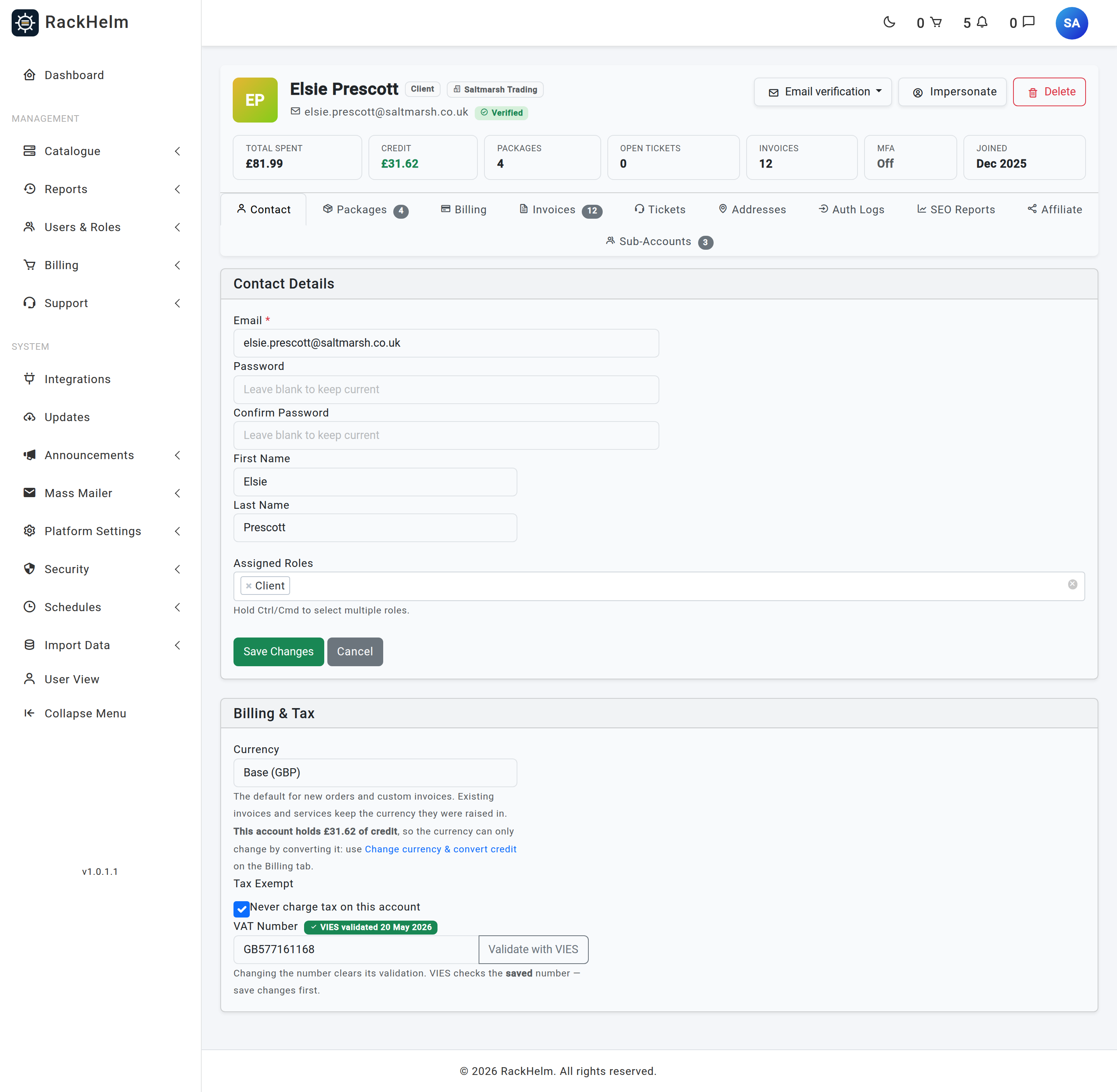
Opening an account gives you a header with at-a-glance figures and a row of tabs. The header tiles are Total spent (the sum of that account’s paid invoices), Credit, Packages, Open tickets, Invoices, MFA and Joined, plus Impersonate and Delete buttons where permitted.
| Tab | What it holds |
|---|---|
| Contact | Email, password reset, name and assigned roles. See Creating and Editing a Client. |
| Packages | Every service the account owns, with product, price, billing cycle, next due date and status, plus per-package actions. |
| Billing | Credit balance, the add/remove credit form, the full credit transaction history, and the stored payment methods (type, card brand and last four, default flag, date added). Needs view_credit_balances. |
| Invoices | Number, amount, due date, paid date and status. Invoices belonging to orders that were later emptied are still listed, so the financial history stays complete. |
| Tickets | Ticket number, subject, department, status and last update — filtered to the departments you are allowed to see, exactly as on the main ticket queue. |
| Addresses | The account’s address book, read-only, including UK legal type and registrant name for .uk domains. See Countries and the Address Book. |
| Auth Logs | Sign-in and sign-out history with IP and approximate location. See Audit Logs and Authentication Logs. |
| SEO Reports | The account’s own SEO scans: website, requested date, running time and status. Only appears when you hold view_seo_reports. |
| Affiliate | Affiliate performance per campaign — clicks, signups, purchases, total earned — and the form for generating new tracking codes. |
| Sub-Accounts | Colleague logins attached to this account, and a form to add one. Hidden when the account you are viewing is itself a sub-account. |
Adjusting a credit balance #
- Open the account and go to Billing.
- Choose Add Credit (+) or Remove Credit (-).
- Enter the Amount (£) — a minimum of 0.01 — and a Reason. The reason is stored on the transaction and is visible to the customer, so write it for them: “Refund for INV-1043”, not “adj”.
- Select Update. The new balance and the entry appear in the history table immediately.
Note: Adding and removing credit are separate permissions.
add_client_creditgets you the form; removing also requiresremove_client_credit, and without it the Remove action returns a 403 rather than failing quietly.
Troubleshooting #
| Symptom | Cause and fix |
|---|---|
| A customer you know exists is missing from the list. | They are a guest. Switch to the Guests pill — the default All view deliberately excludes them. |
| Opening a profile returns 403. | The account holds a role at or above your own. Only a higher-ranked staff member can open it. |
| The Billing, Tickets, Auth Logs or SEO Reports tab returns 403 while the others work. | Each of those tabs carries its own permission on top of view_clients. Grant the matching key on the role. |
| “Insufficient credit balance.” when removing credit. | The amount exceeds the current balance. RackHelm refuses to push a balance negative; remove the available amount instead. |
| The Packages count in the list disagrees with the Packages tab. | The list column counts top-level services only, while the tab also lists add-on line items attached to them. |
| No New User button. | You are missing create_clients. |


